Trends
Topic subscriptions: fresh trends and content ideas every day in Telegram.
6 steps≈ 5 minDesktop · Mobile
“Trends” sends to Telegram what your niche is talking about right now, plus ready post ideas for every trend. You pick topics from the catalog, set how many trends and ideas to receive and how often, as well as the delivery time, language and format. Messages arrive every day without any effort on your part.
Step-by-step guideDesktop version
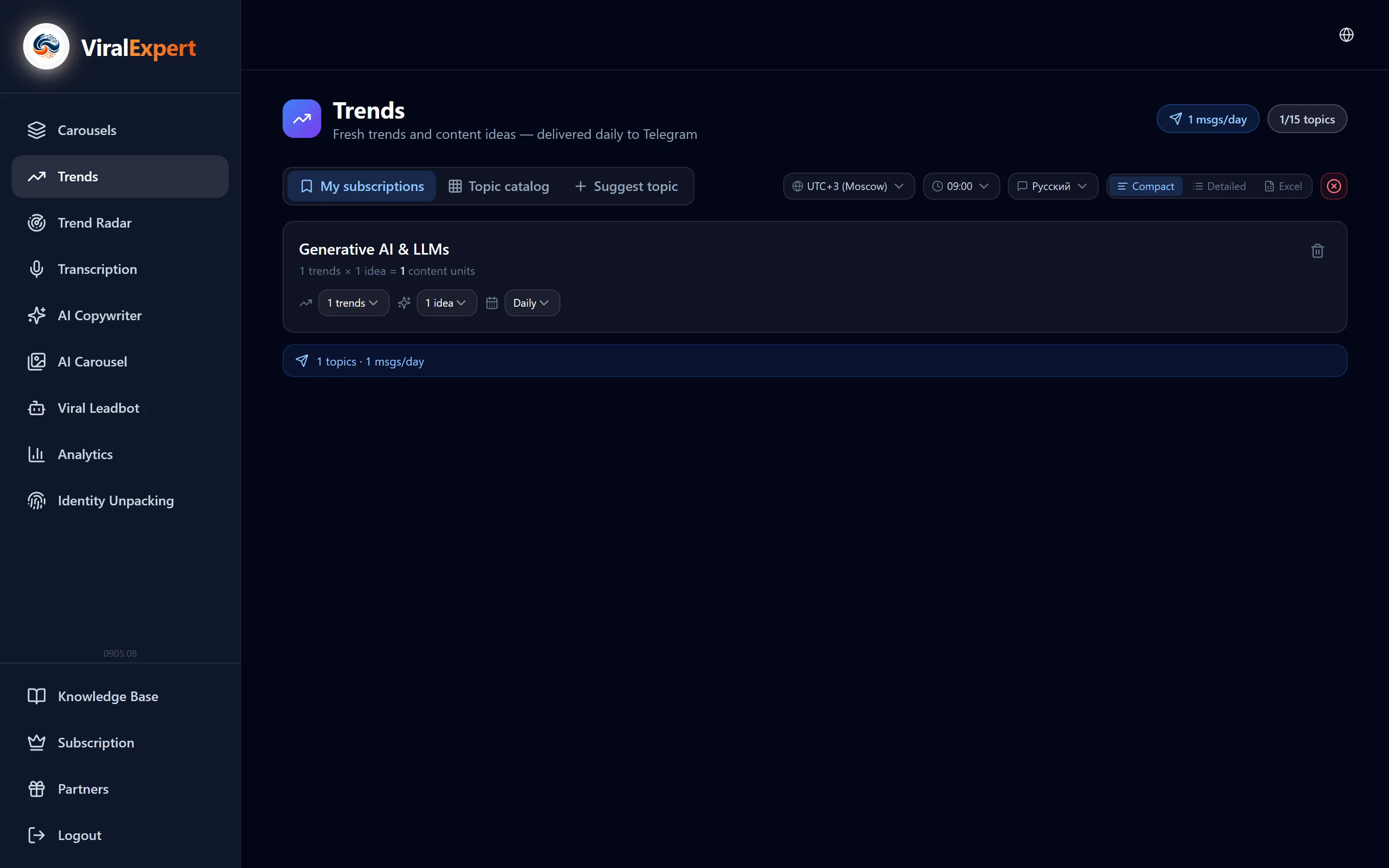
Connect Telegram
- In the sidebar open “Trends”
- In the “Delivery settings” bar check the Telegram status: if it's not connected, click “Connect Telegram” and start the bot with the “Start” button
- The connection is shared across the whole platform — if you've already sent carousels to Telegram, it's already there
Important
Without a connected Telegram, subscriptions are created but the messages have nowhere to go.
Pick topics in the catalog
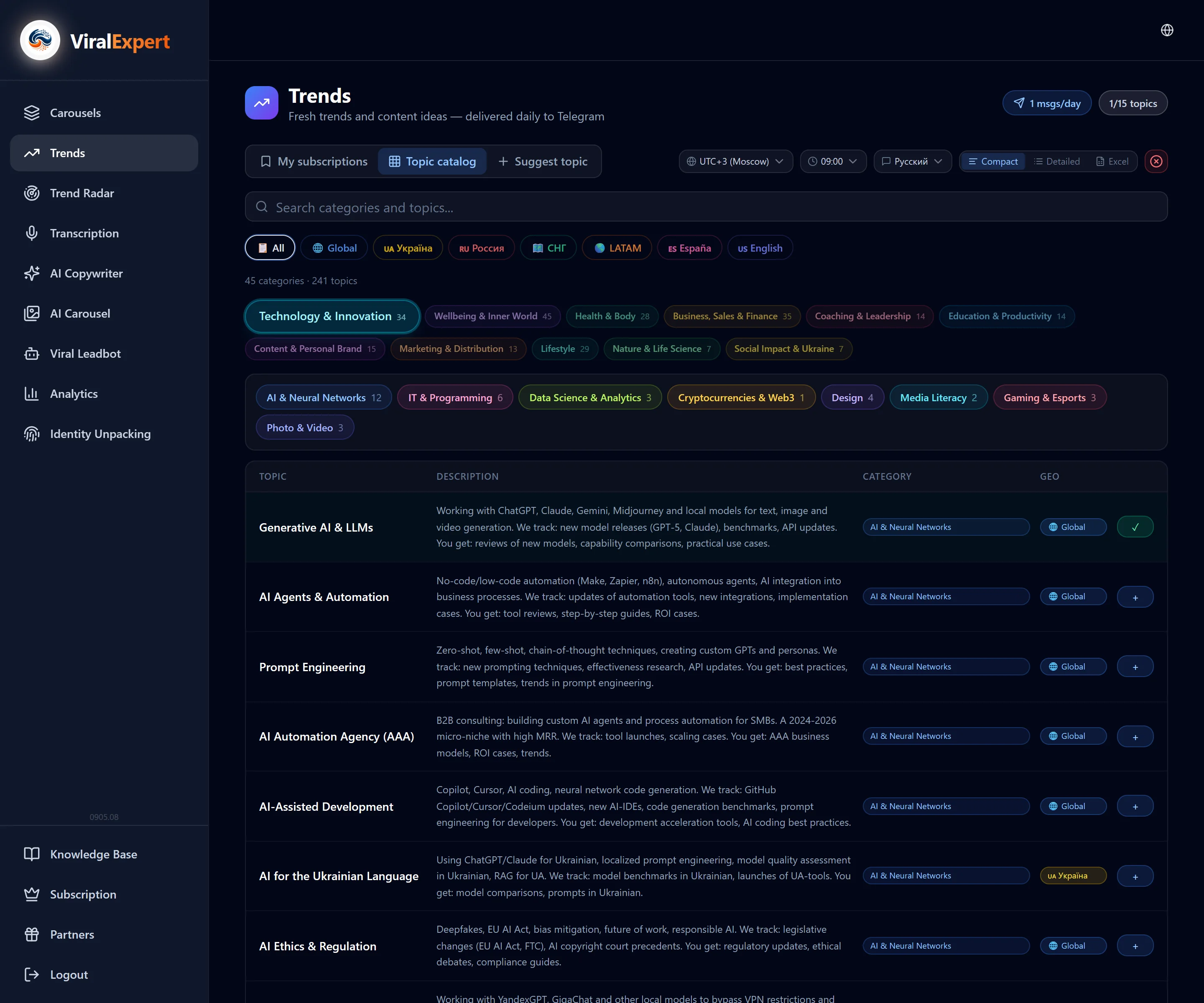
- Open the “Topic catalog” tab — more than 200 topics in four languages
- Narrow the list: the search field, the geo filter (region flags) and categories: SMM, Marketing, Technology, Business, Lifestyle, Finance, Education
- Each topic in the table has a description, category and geo. Click “Subscribe”; the button changes to “Subscribed”
- The “topics” counter in the header shows how many subscriptions of the plan limit are taken
Note
Topic limits: Start — 2, Pro — 7, Pro+ — 15. When the limit is reached, a hint suggests moving to a higher plan; you can free a slot by unsubscribing from a topic.
Set up each subscription
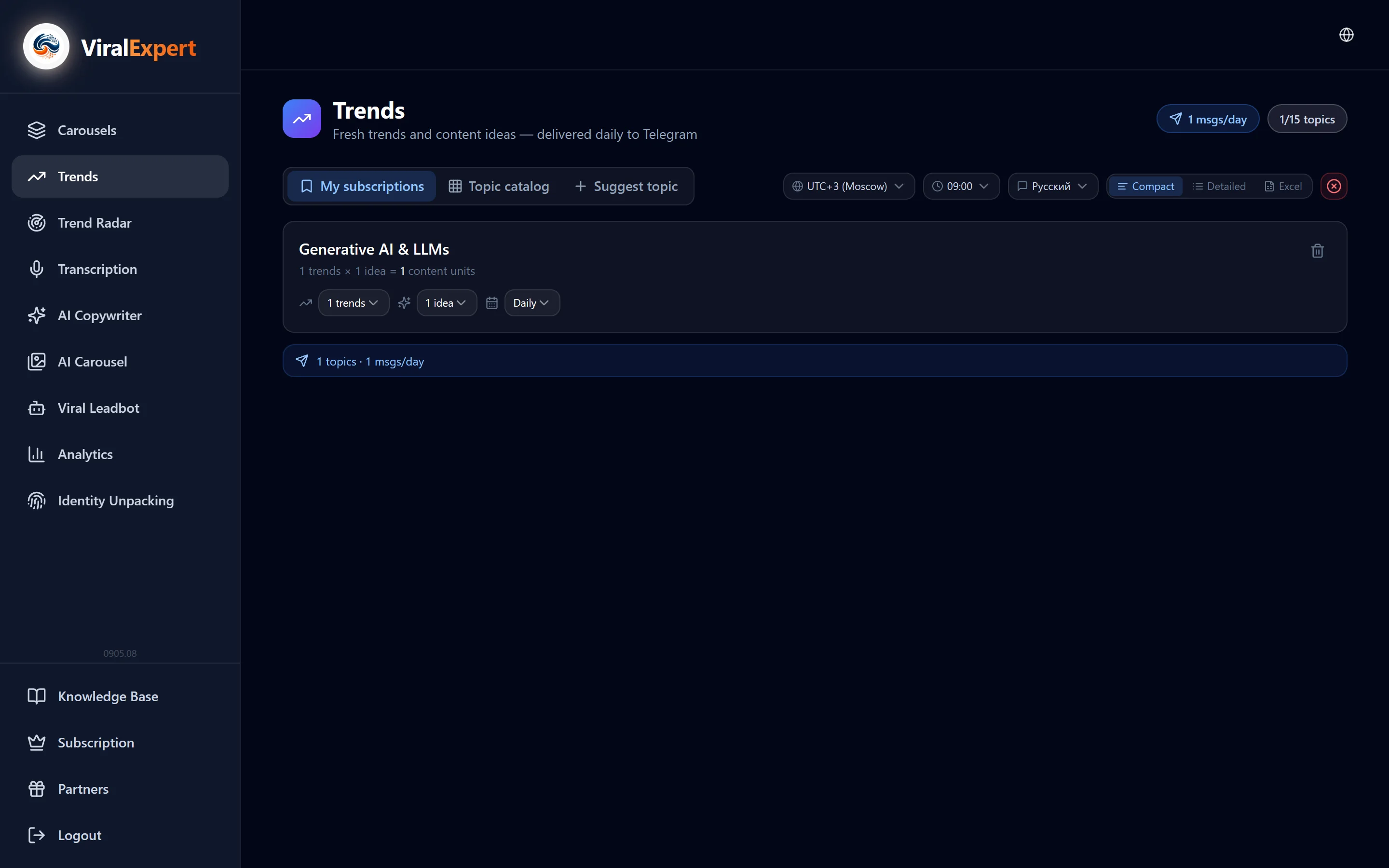
In the “My subscriptions” tab every topic has its own card.
- Trends per topic — from 1 to 5. More than 2 requires Pro, more than 3 — Pro+
- Ideas per trend — from 1 to 3; three ideas from Pro
- Frequency — daily or once every few days
- The card totals it up: trends × ideas = content units per message, and the header shows how many messages a day arrive for all topics
Tip
Start with 2–3 trends and 2 ideas: a message like that reads in a minute, and you can keep more topics.
Set up delivery
The “Delivery settings” bar is shared by all subscriptions.
- Time zone and send time — when the digest arrives
- Digest language — Russian, English, Ukrainian, Spanish
- Format: Compact — all trends in one message; Detailed — every idea as a separate message, easy to copy; Excel — a table with all trends and ideas as a file
Note
The message arrives within ±30 minutes of the chosen time — that's how the processing cycle works.
Read and use
- Every trend comes with links to sources — you can verify and dig deeper
- Each trend has post ideas attached: a headline and an angle
- If nothing new appeared on a topic that day, a short notice arrives and the check repeats tomorrow
- Send an idea you like to the AI Copywriter as a topic — the post is ready in a minute
Suggest your own topic and watch the trial
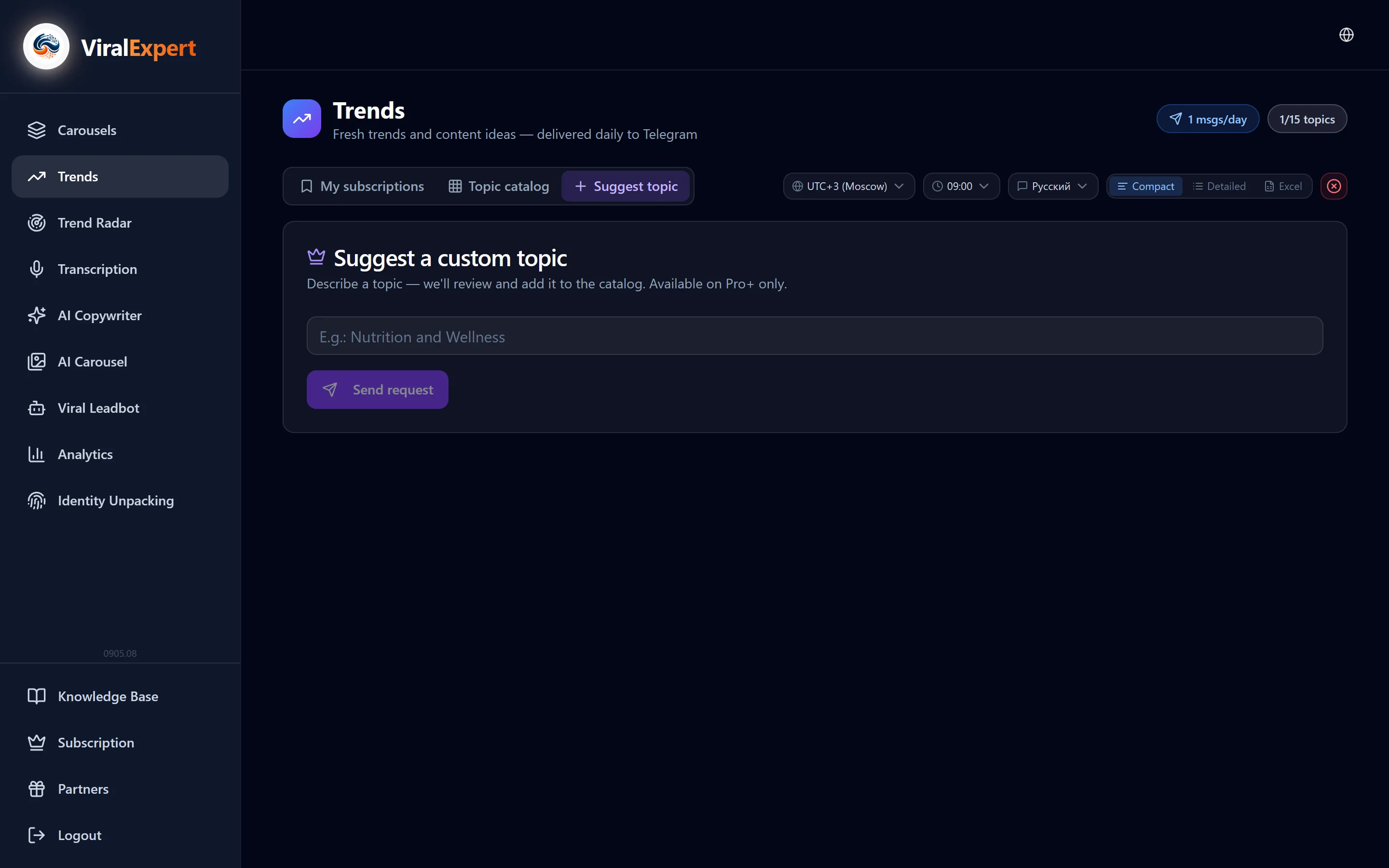
- Pro+ has a “Suggest a topic” tab: describe the niche — we'll check it and add it to the catalog
- On Start the digest works 7 days for free; the countdown starts with the first received message, and the banner at the top shows how many days are left
- When the trial ends, subscriptions are kept and messages pause until Pro is activated
FAQ
Ready to try?
Every tool is free to start. No card required.