Install as an app
ViralExpert installs on your phone and computer as an app: an icon on the screen, full screen without the browser bar, automatic updates.
5 steps≈ 3 minDesktop · Mobile
ViralExpert is a web app that installs without the App Store or Google Play. On an iPhone it's done via “Share → Add to Home Screen”, on Android and on the computer — with the “Install” button in the browser. After installing, the site opens like a regular app and updates itself.
Step-by-step guideDesktop version
Why install
- An icon on the screen — the dashboard opens in one tap
- Full screen without the browser's address bar — the editor and Trend Radar get more room
- On the phone the “Share” export sends slides straight to Instagram, TikTok and messengers
- Updates arrive by themselves — nothing to download
iPhone and iPad
- Open viralexpert.app in Safari — installing isn't available from other browsers or in-app windows (Instagram, Telegram)
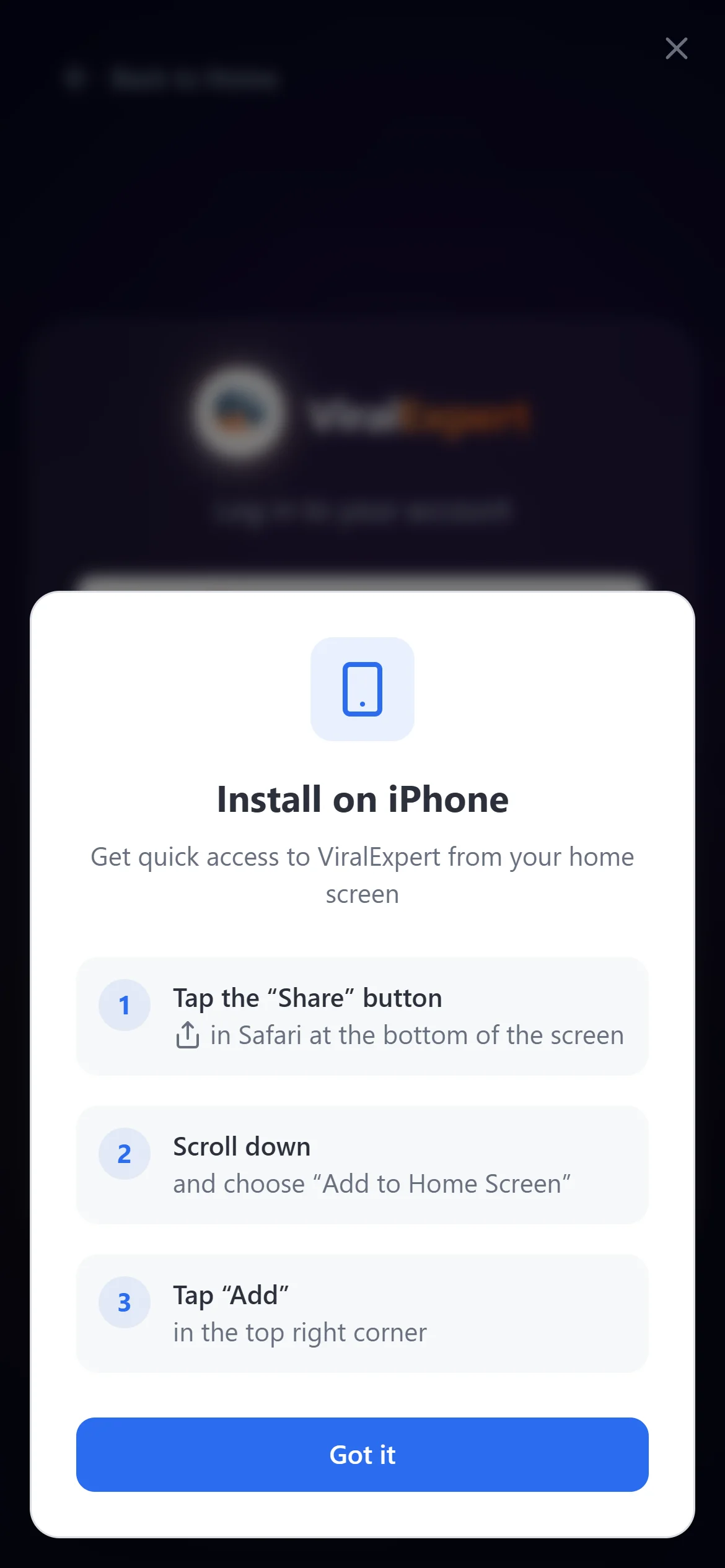
- On login the “Install on iPhone” hint appears with three steps; if it isn't there, do it by hand:
- Tap the “Share” button (the square with an arrow) at the bottom of the screen
- Scroll down and choose “Add to Home Screen”
- Tap “Add” in the top right corner — the icon appears on the screen
Tip
If you closed the hint with the cross, it isn't shown again — install by hand via “Share”.
Android
- Open the site in Chrome
- A “📱 Install the app” banner appears at the bottom — tap “Install”
- If there's no banner: the Chrome menu (three dots) → “Install app” or “Add to Home screen”
Computer
- In Chrome or Edge an install icon (a monitor with an arrow) appears on the right of the address bar — click it and confirm
- Or the browser menu → “Install ViralExpert”
- The app appears in the Start menu or Launchpad and opens in its own window
Updates and if something went wrong
- When a new version is out, the “Update available” notice appears at the bottom — click “Update”
- An old version opened or the microphone doesn't work: fully reload the page — Ctrl+Shift+R on the computer — and close and reopen the installed app
- The app is removed like any other: long-press the icon → remove. Your account and data stay
Note
The app is the same site: login, plan and all your carousels are shared between the browser and the installed version.
FAQ
Ready to try?
Every tool is free to start. No card required.