AI Carousel
A carousel drawn by AI: your text, a chosen style, a character with your face and finished slide images.
AI Carousel differs from the regular editor: here slides aren't laid out from a template but drawn by a neural network from your text in the chosen style. You paste the text, it's spread across slides, you refine the wording, generate the first slide to see the style, then render the rest. Any slide can be corrected in words, regenerated or rolled back to a previous version. The finished carousel can be downloaded, sent to Telegram or published.
Step-by-step guideDesktop version
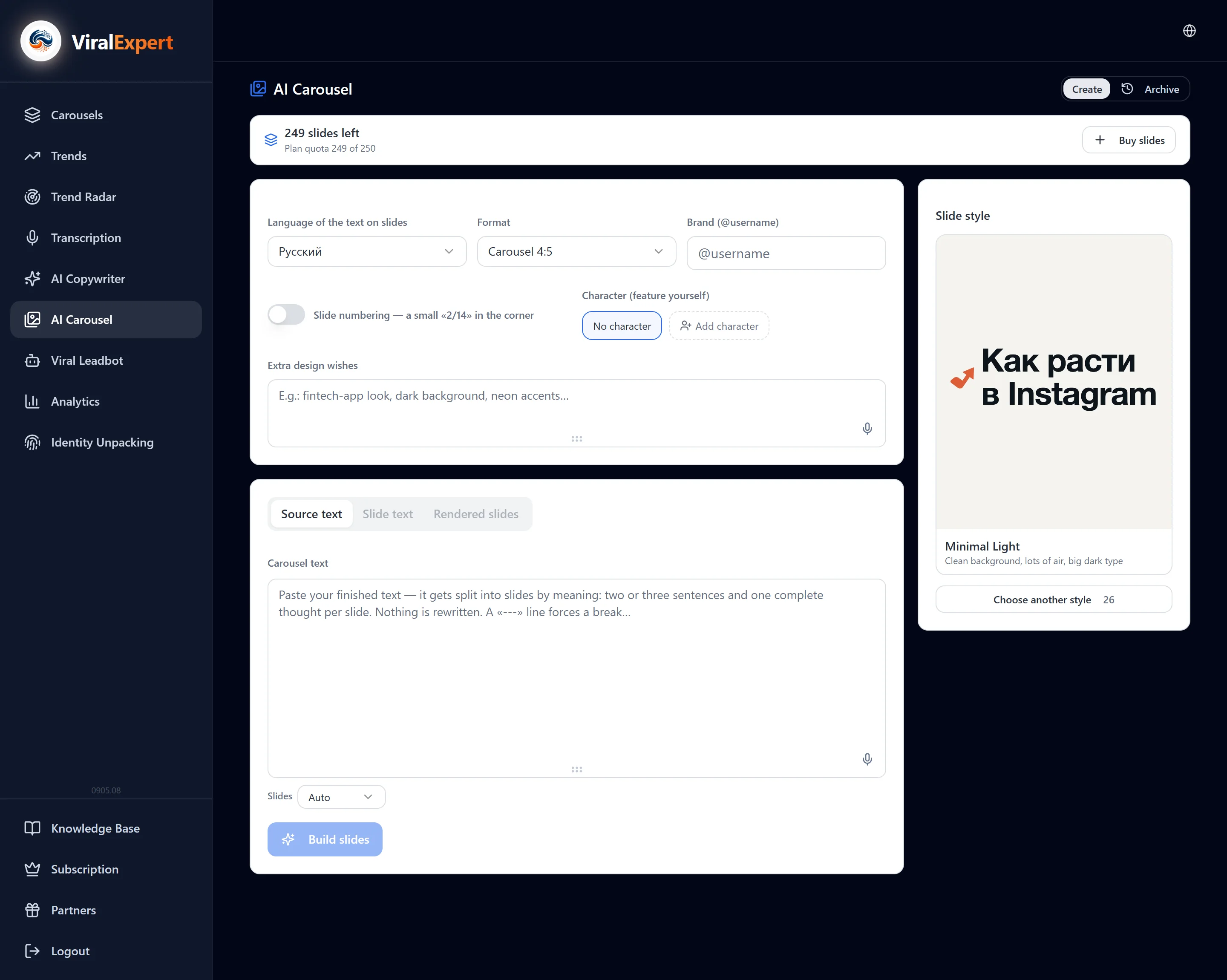
Open AI Carousel and check your slide balance
- In the sidebar click “AI Carousel”
- At the top is the “Generate” / “Archive” switch: generate is the workspace, archive holds all past carousels
- The balance bar shows “N slides left”: how many from the plan and how many from purchased packs
Set the format, brand and language
The “Settings” block defines how the slides will look.
- Format — Carousel 4:5, Stories 9:16, Square 1:1, Portrait 3:4, Portrait 2:3, Wide 16:9
- Brand (@username) — your handle appears on the slides
- Slide numbering — a small “2/14” in the corner so the reader knows how much to swipe
- Slide text language — the language the AI writes on the images
Choose a slide style
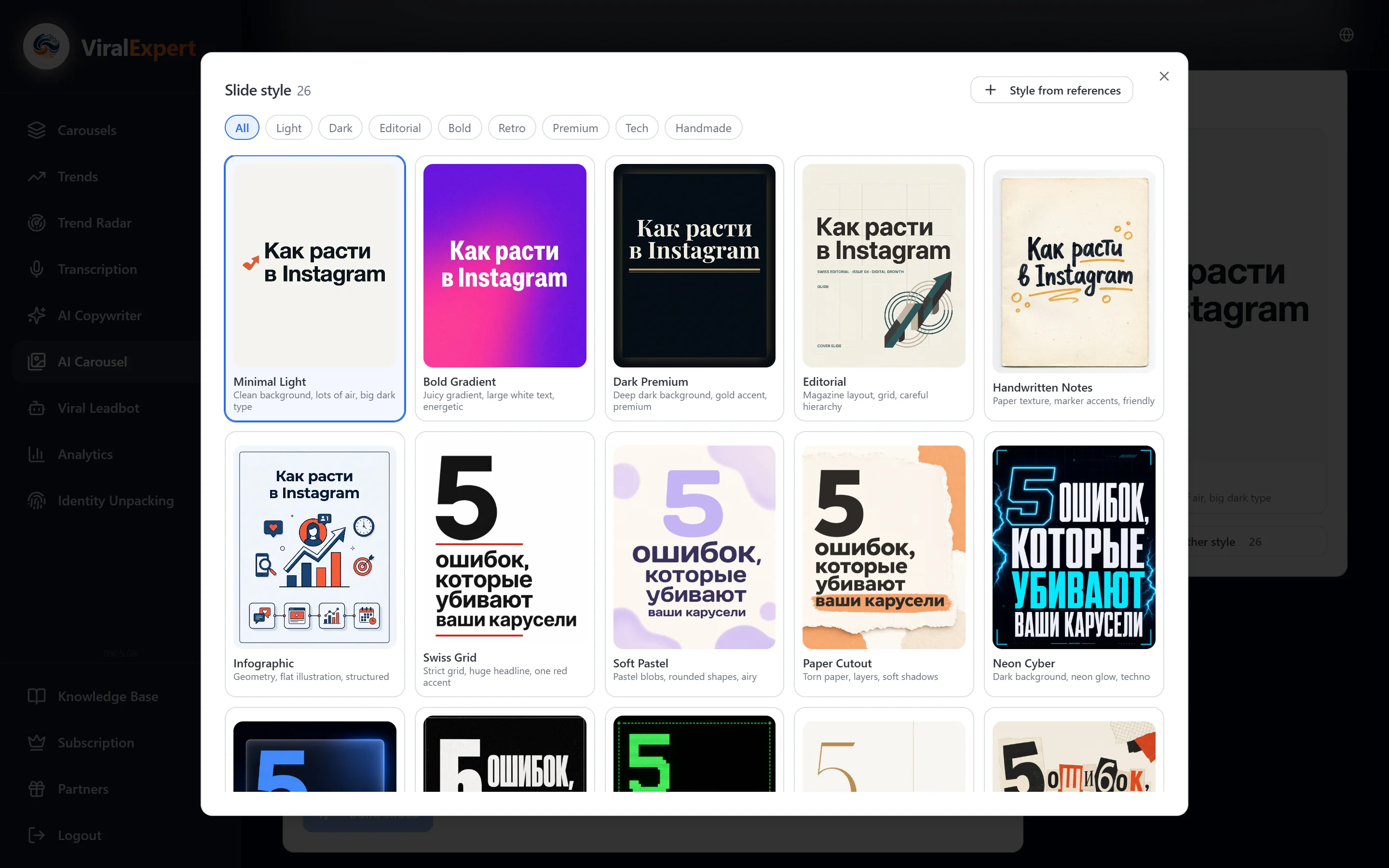
- Click “Slide style” — a gallery with previews opens
- Categories: All, Light, Dark, Editorial, Bold, Retro, Premium, Tech, Handmade, Mine
- Click a style — it's applied; change it with “Choose another style”
Your own style from references
- “Style from references” → upload 1–3 of your own sample slides (from the device or Ctrl+V from the clipboard)
- Name it, e.g. “My brand” — the AI describes the style and saves it in the “Mine” tab
- An unneeded style is deleted from the same gallery; already drawn carousels are unaffected
Character and design wishes
- Character (featuring you): choose “No character” or “Add character” — upload 1–3 photos of a person and name them (e.g. “Me”). They will appear on the slides
- Extra design wishes — free text: “fintech app style, dark background, neon accents”
- Wishes can change between generations: look at the first slide, refine, render the rest
Paste the text and build the slides
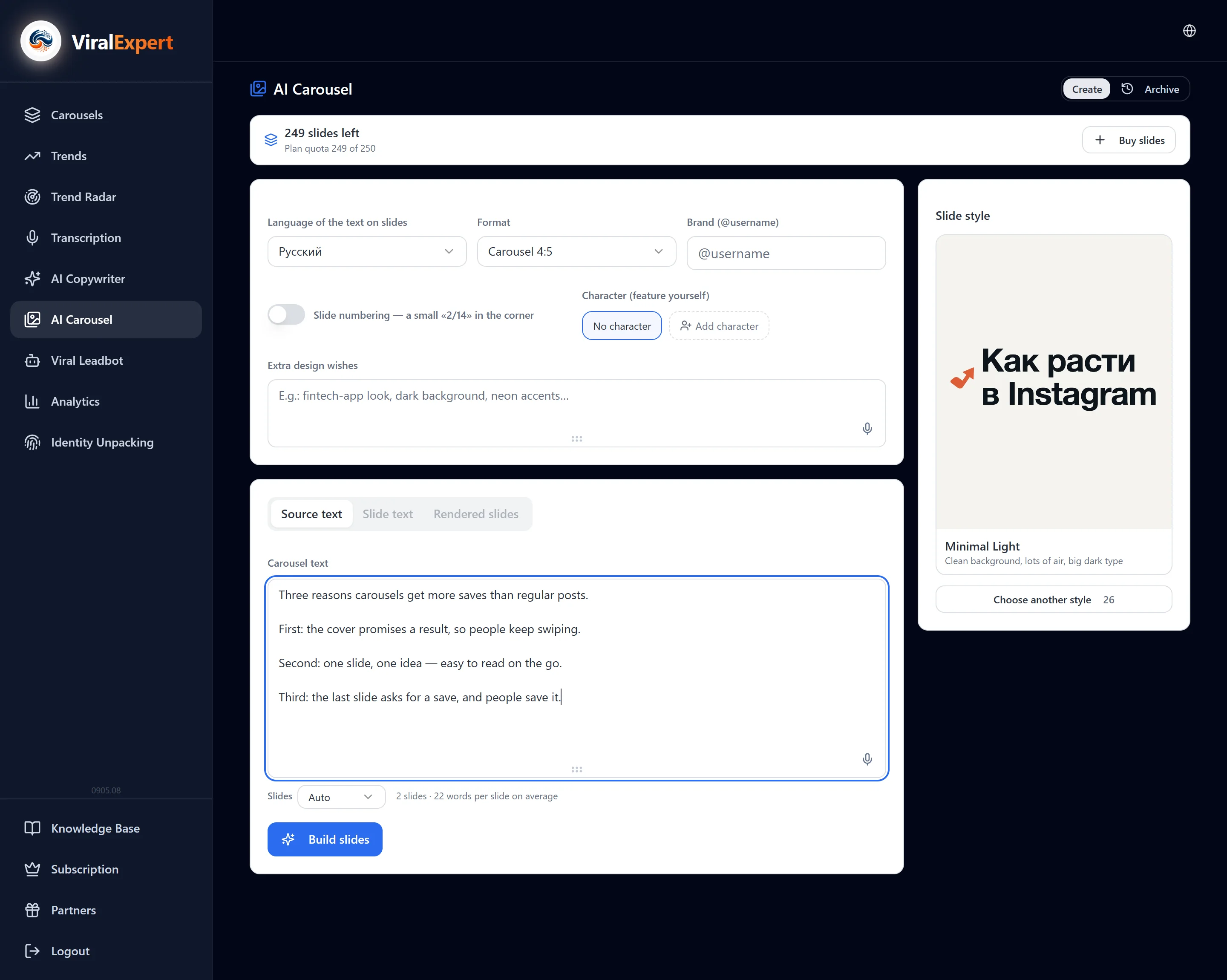
- The “Source text” tab: paste finished text into the “Carousel text” field
- The text is split by meaning — two or three sentences and a complete thought per slide; the text itself isn't rewritten
- “---” on its own line — a forced slide break
- “Slides”: Auto or an exact number; the hint under the field shows how many slides you'll get and how many words per slide
- Click “Build slides”
Edit the text per slide
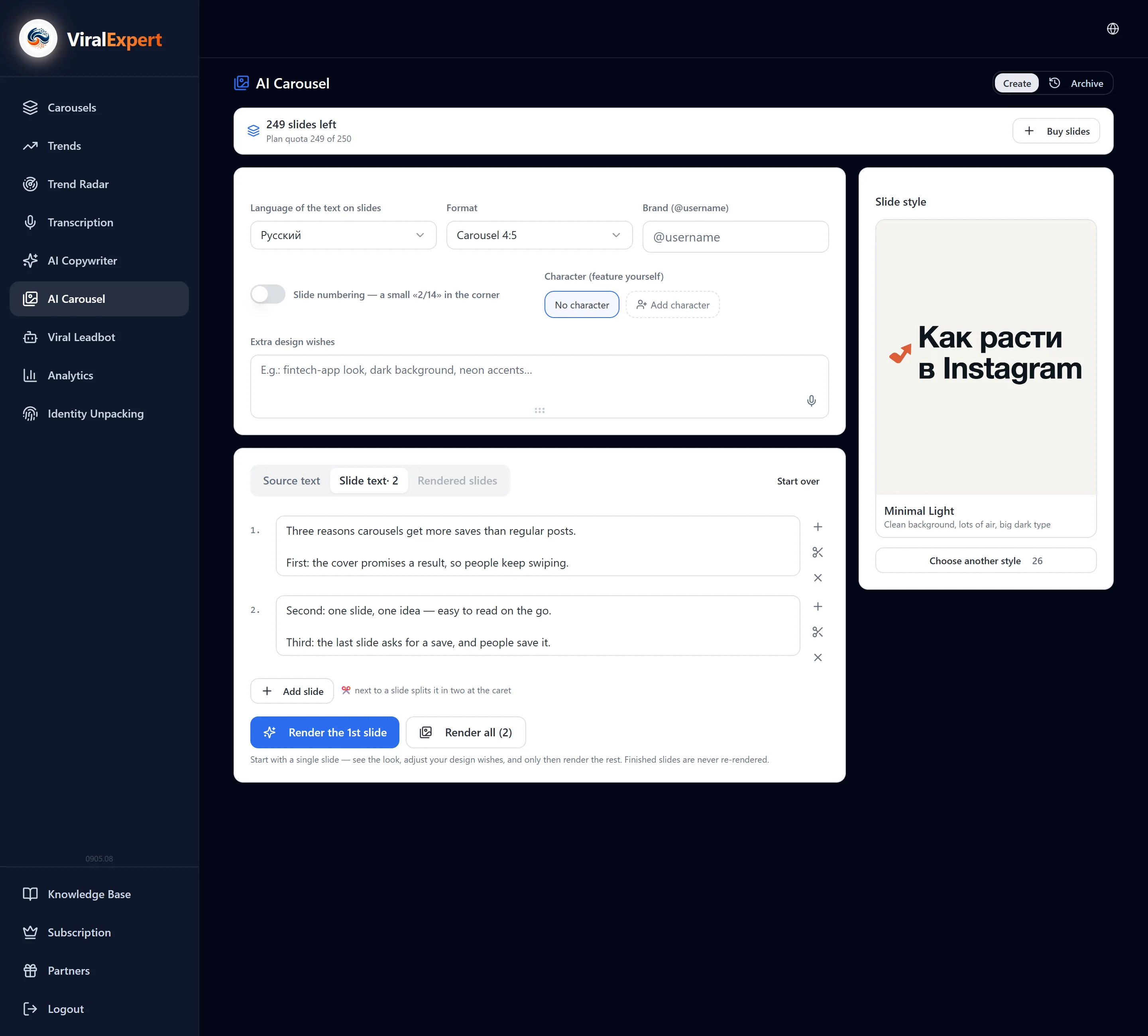
The “Text per slide” tab is the last chance to fix the wording before the AI starts drawing.
- Each slide is a separate field; edits save themselves
- “Add an empty slide after this one”, ✂ “Split in two at the cursor”, “Delete slide” — in the slide menu
- The “a bit long for a slide” mark — shorten it, otherwise the text on the image will be tiny
- Empty slides must be filled or deleted — otherwise generation won't start
Generate the first slide, then the rest
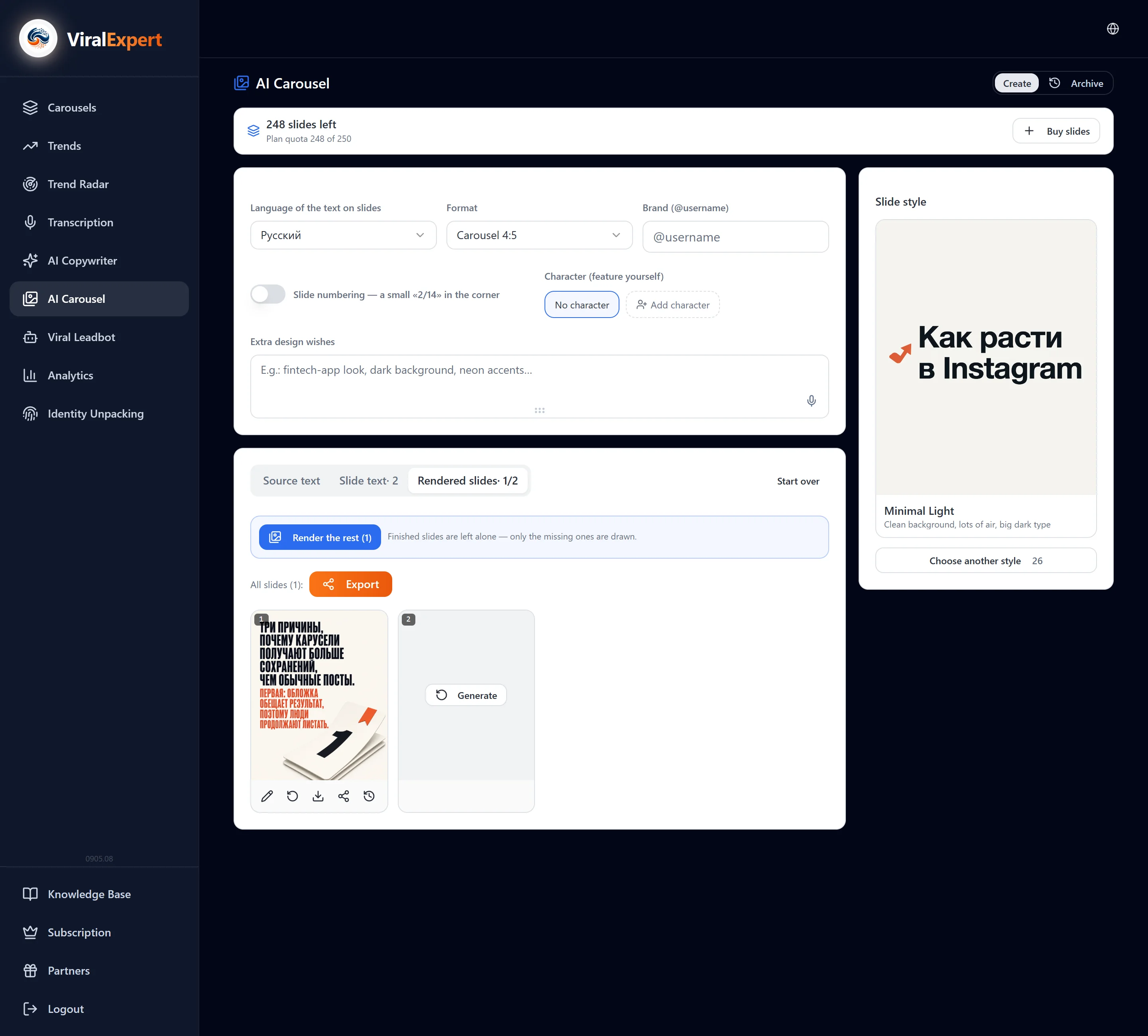
- Click “Generate 1st slide” — you'll see how the AI understood the style and wishes
- Don't like it — change the wishes or the style and regenerate just that one
- Like it — “Render the rest (N)”: finished slides aren't redrawn, only the missing ones are
- “Generate all (N)” draws everything at once; if the balance is short, the first ones are rendered
Edit, regenerate, roll back versions
The “Finished slides” tab — a card per slide.
- “Open preview” — the slide full screen
- “Edit” → write what to fix (“remove the extra text”, “make the background lighter”) → “Apply edit”
- “Regenerate” — a new image for the same text
- “Version history” — all variants of the slide; “Restore this version” makes it current
- “Download” — one slide as an image
Export and find the carousel in the archive
- The “Export” button opens the same window as the regular editor: format images / archive / PDF, destination — save to device, Telegram, Instagram, share
- The “All slides” button downloads the whole carousel at once
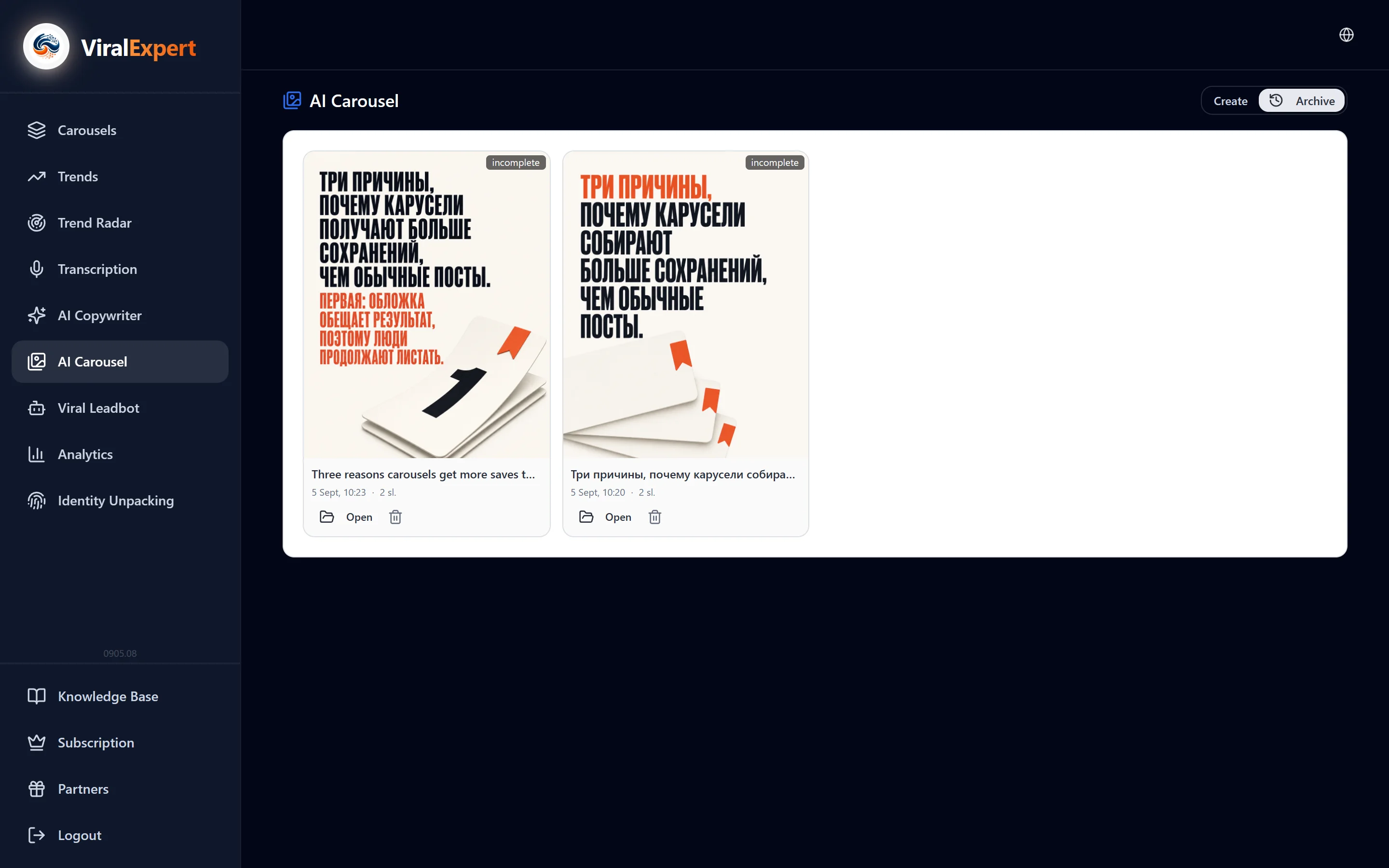
- The “Archive” keeps all carousels: open, continue an unfinished one or delete it with its slides
FAQ
Ready to try?
Every tool is free to start. No card required.