Transcription
Video and audio to text with timecodes and speakers. 98+ languages, files up to 5 GB, links to YouTube and social networks.
7 steps≈ 6 minDesktop · Mobile
Transcription turns a recording into text: upload a file or paste a video link, choose the task — a transcript or a translation into English — and in a few minutes you get text with timecodes. The result can be edited, exported as documents and subtitles, sent to Telegram and passed to the AI Copywriter in one click.
Step-by-step guideDesktop version
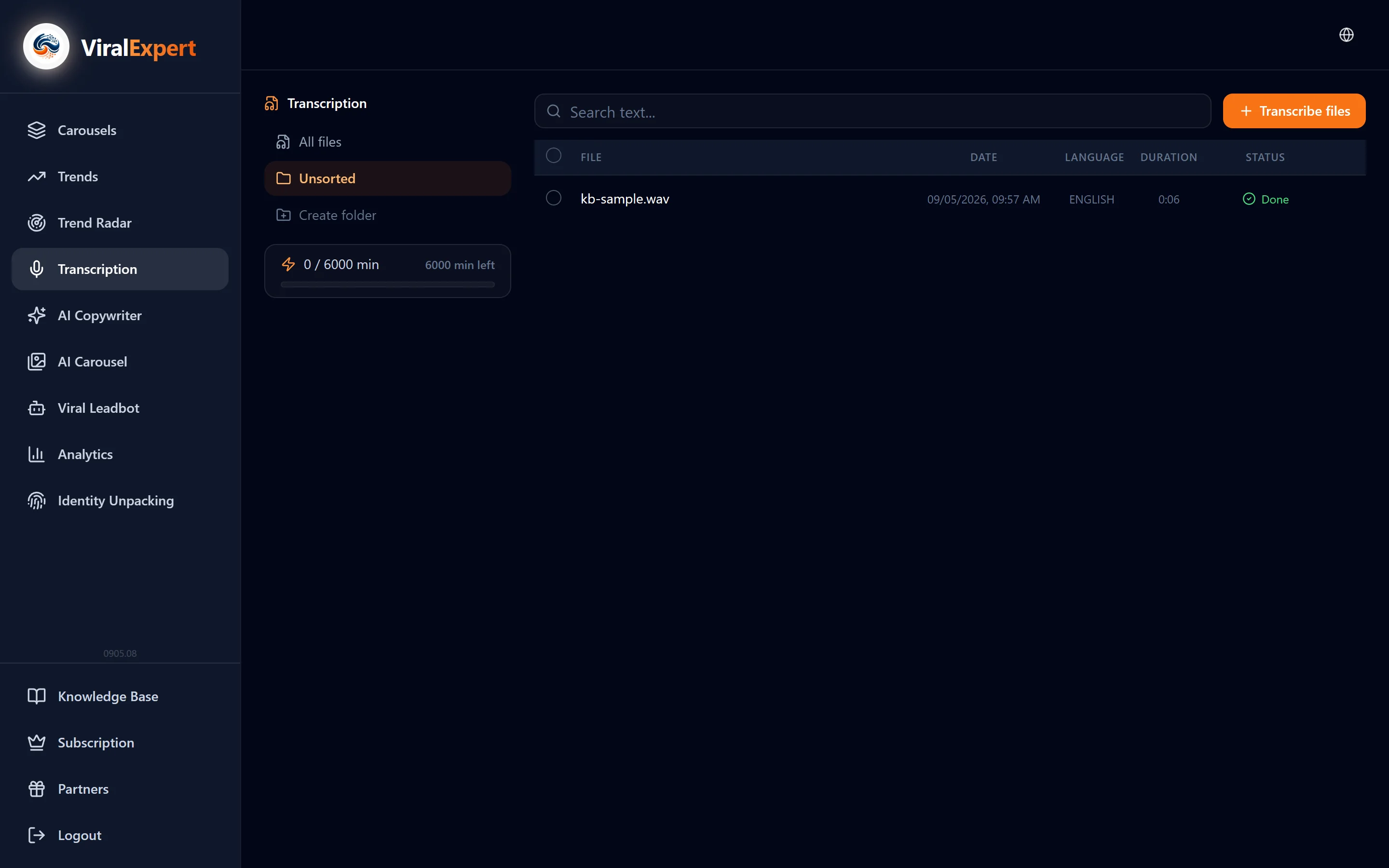
Open the section and check your remaining minutes
- In the dashboard sidebar click “Transcription”
- Folders and the list of all files are on the left; the upload button and the processing queue are on the right
- The limit bar shows how many minutes are used and how many are left
Note
Limits are counted in minutes of recording: Start — 150 minutes one-time, Pro — 3,000 minutes a month (50 hours), Pro+ — 6,000 minutes (100 hours). Pro minutes renew every 30 days.
Upload a file or paste a link
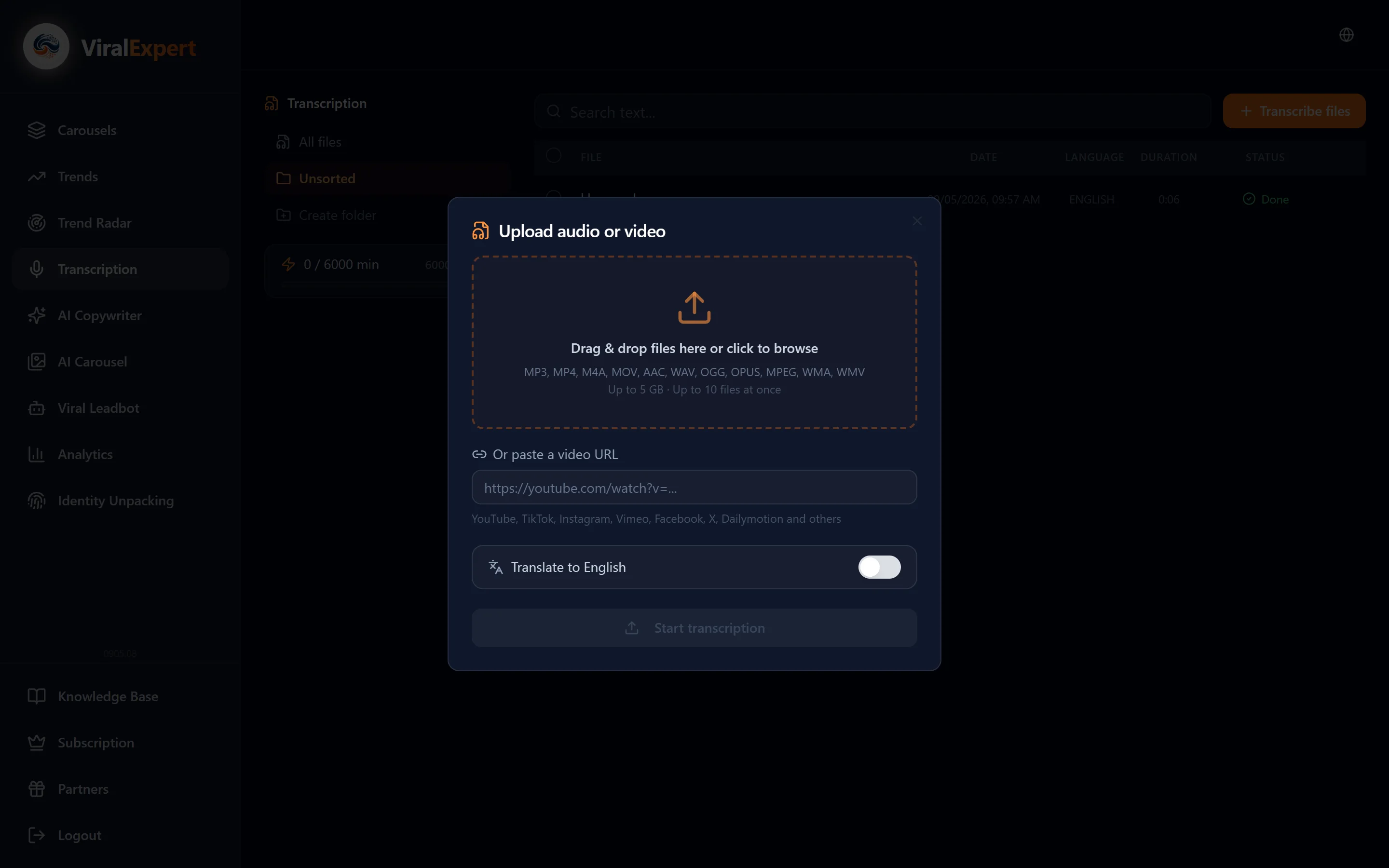
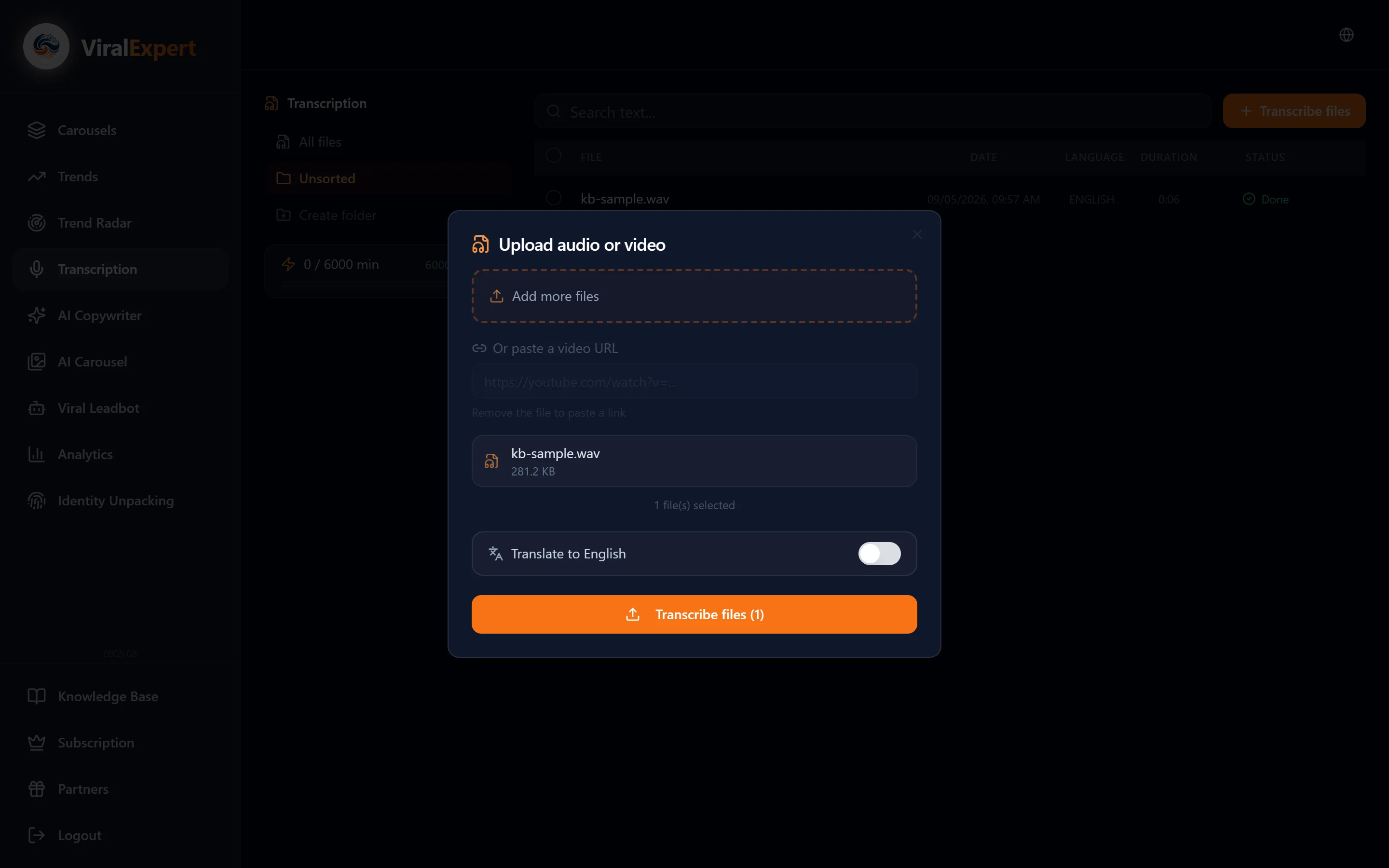
Click “Choose file” or drag files into the upload area — the upload window opens.
Files
- Up to 10 files at a time, each up to 5 GB
- Formats: MP3, MP4, M4A, MOV, AAC, WAV, OGG, OPUS, MPEG, WMA, WMV and other audio and video
- Large video is converted to MP3 right in the browser before sending, and long recordings are split into parts — this happens automatically
Link
- Paste the video address into the “Or paste a video link” field
- YouTube, TikTok, Instagram, Vimeo, VK, RuTube, OK and others are supported
- The service checks the duration: a video that is too long is rejected — the limit is shown in the message
Important
A file and a link can't be combined in one job: to paste a link, remove the selected file, and vice versa.
Choose the task and options
- Task: “Transcription” — text in the recording's language, or “Translate to English” — English text straight away
- “Speaker detection” (beta) — the bot marks speaker changes by pauses: handy for interviews and calls
- Folder — where to put the result; a new folder can be created right here
- The recording language is detected automatically, you don't need to choose it
Tip
For podcasts and interviews turn on speakers right away: they can't be added to a finished transcript later.
Start and wait for the result
- Click “Start transcription” (for a link — “Transcribe”)
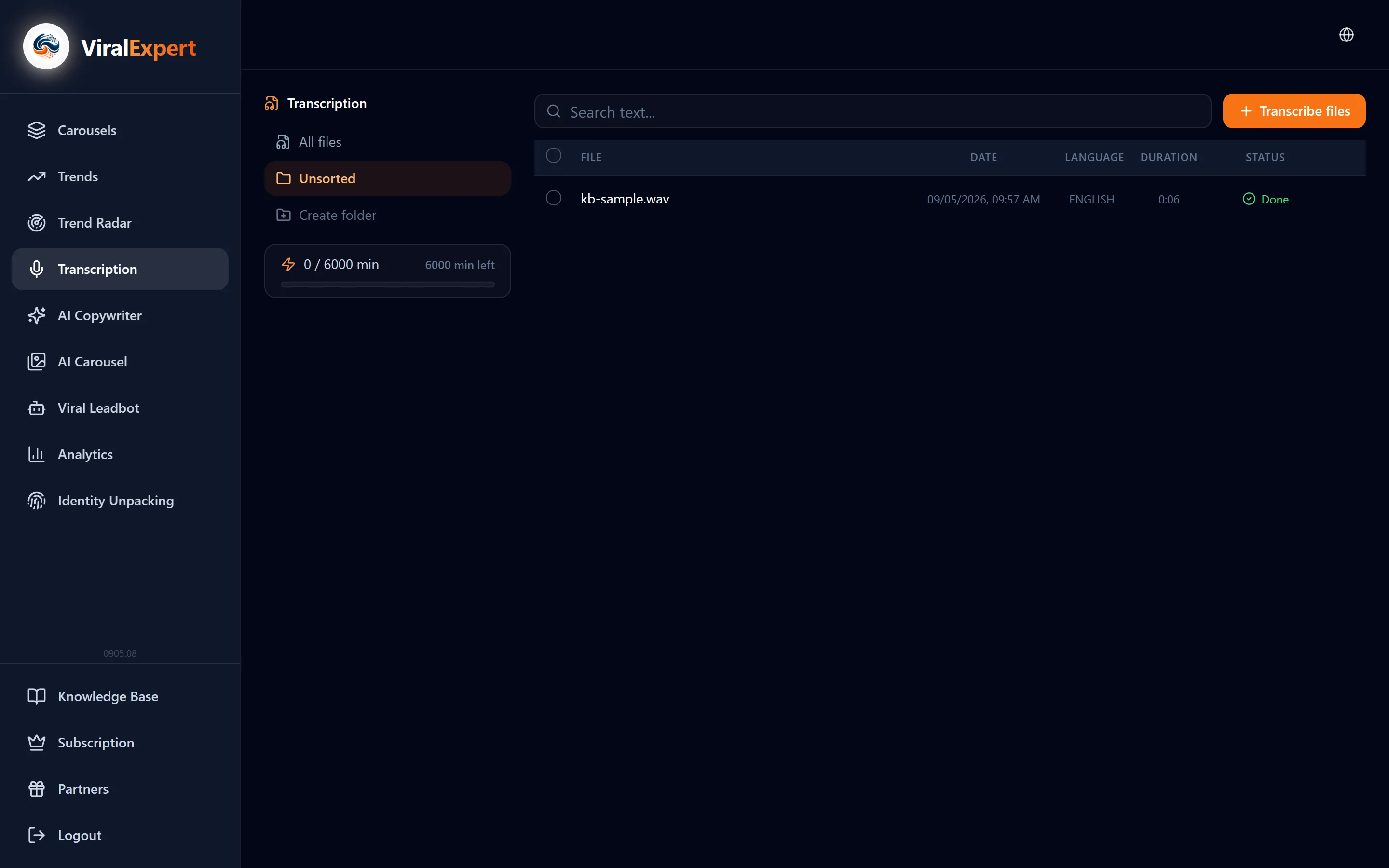
- Queue statuses: Converting → Uploading → Speech recognition → Done
- Don't close the window while the file is uploading. After the “File uploaded” message you can close the page — processing continues on the server
- Most files are ready in under a minute, recordings over an hour take 2–3 minutes
Note
The “Queue” tab shows up to 10 files in progress. “Clear completed” removes finished ones from the list — the transcripts themselves stay in the history.
Read and correct the result
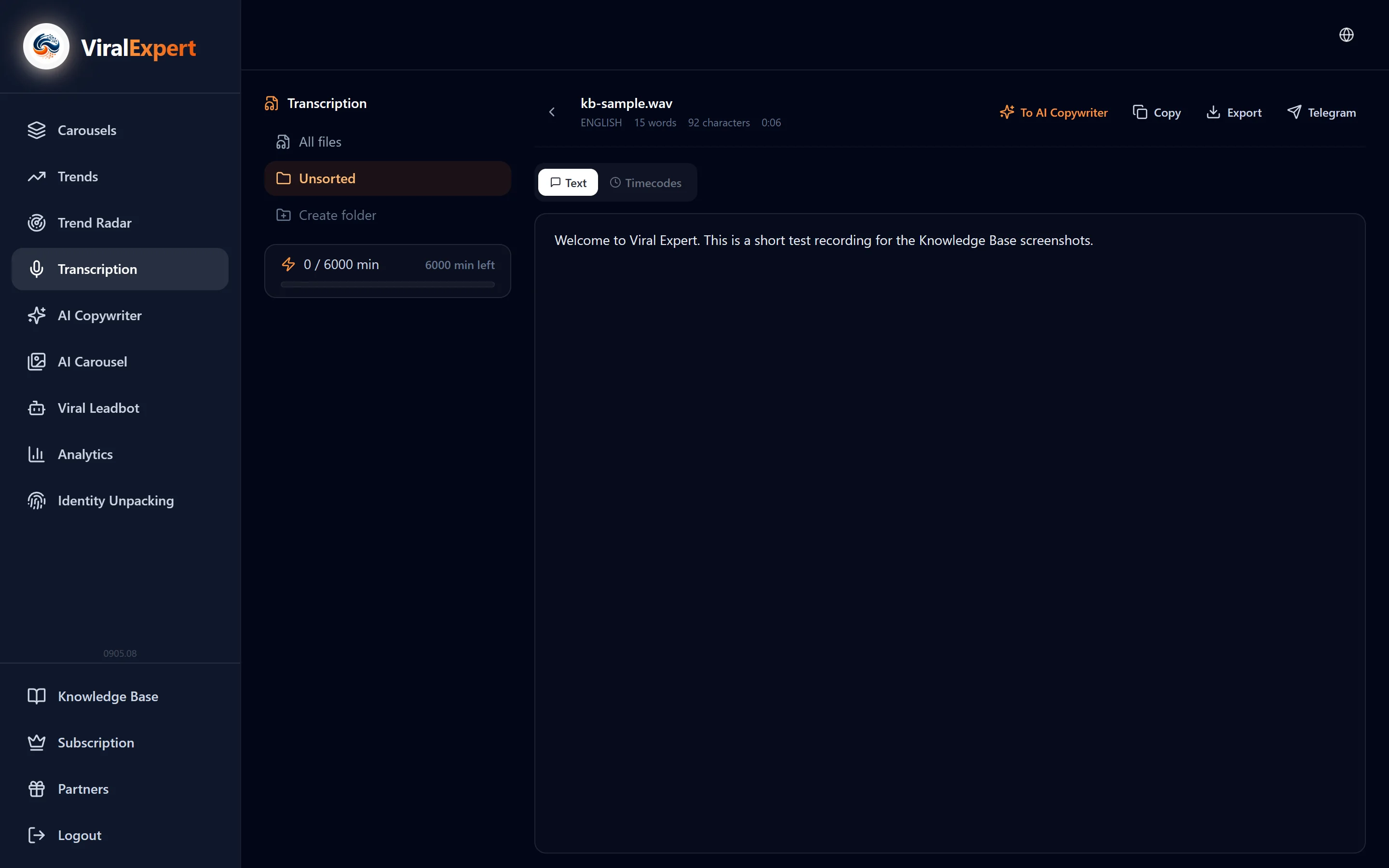
Click a finished file in the list — the result opens.
- Tabs: “Text” — plain text, “With timecodes” — paragraphs with time marks, “Timecodes + speakers” — who spoke when, “Segments” — by phrase
- At the top — the detected language, word and character counts
- “Edit” opens the text for corrections; “Save” writes the changes
Copy, export or send
Copy
- “Copy text” — clean text
- “With timecodes” — text with time marks
- “For NotebookLM” — a format that's easy to load into a Google NotebookLM notebook
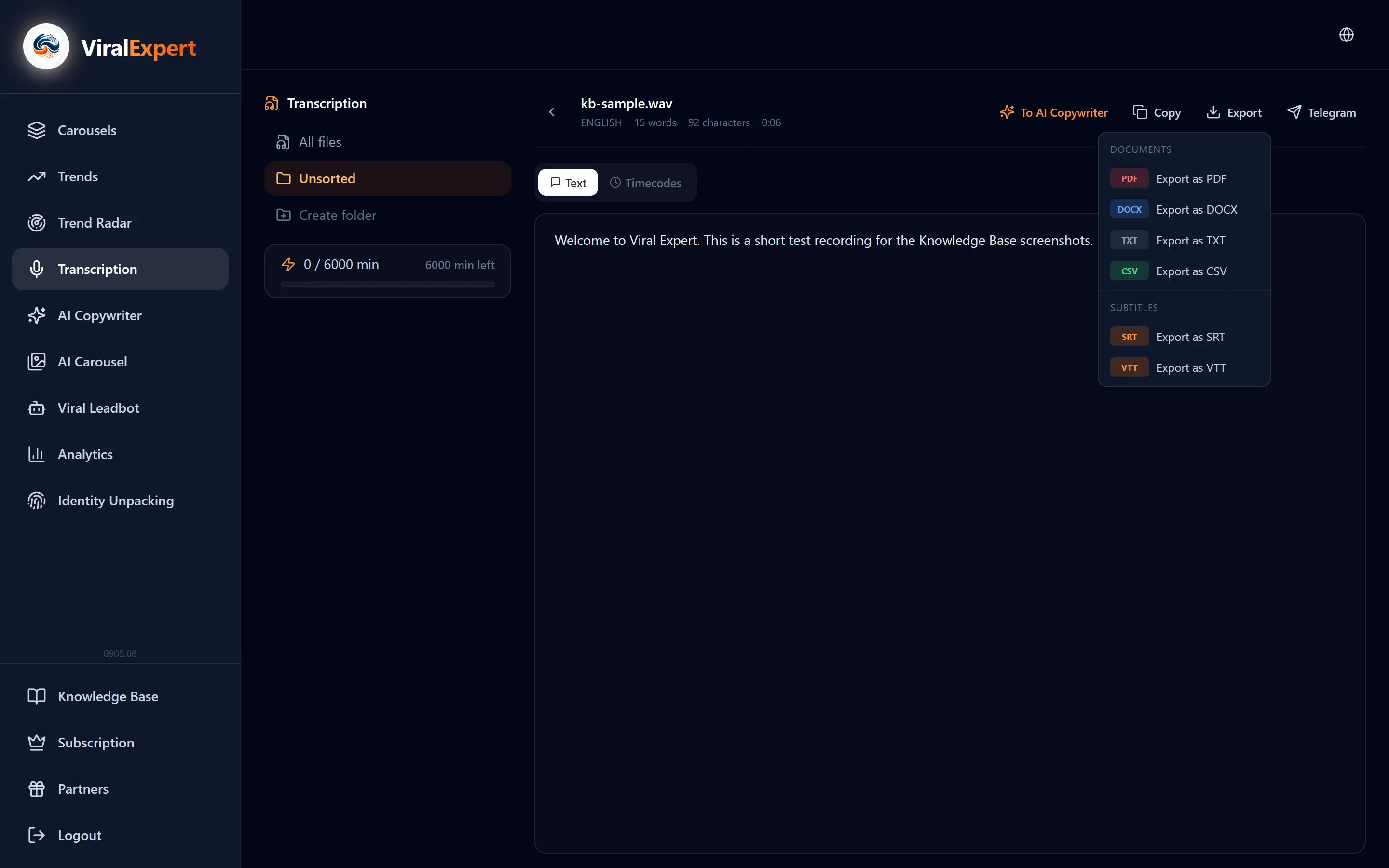
Export
- Documents: PDF, DOCX, TXT, CSV
- Subtitles: SRT and VTT — with time marks for video editors and YouTube
- Telegram: send as a file in any of these formats to the chat with the bot
Tip
The “To AI Copywriter” button moves the transcript into the copywriter's topic field: an hour-long stream becomes a post in a minute.
Folders, search and bulk actions
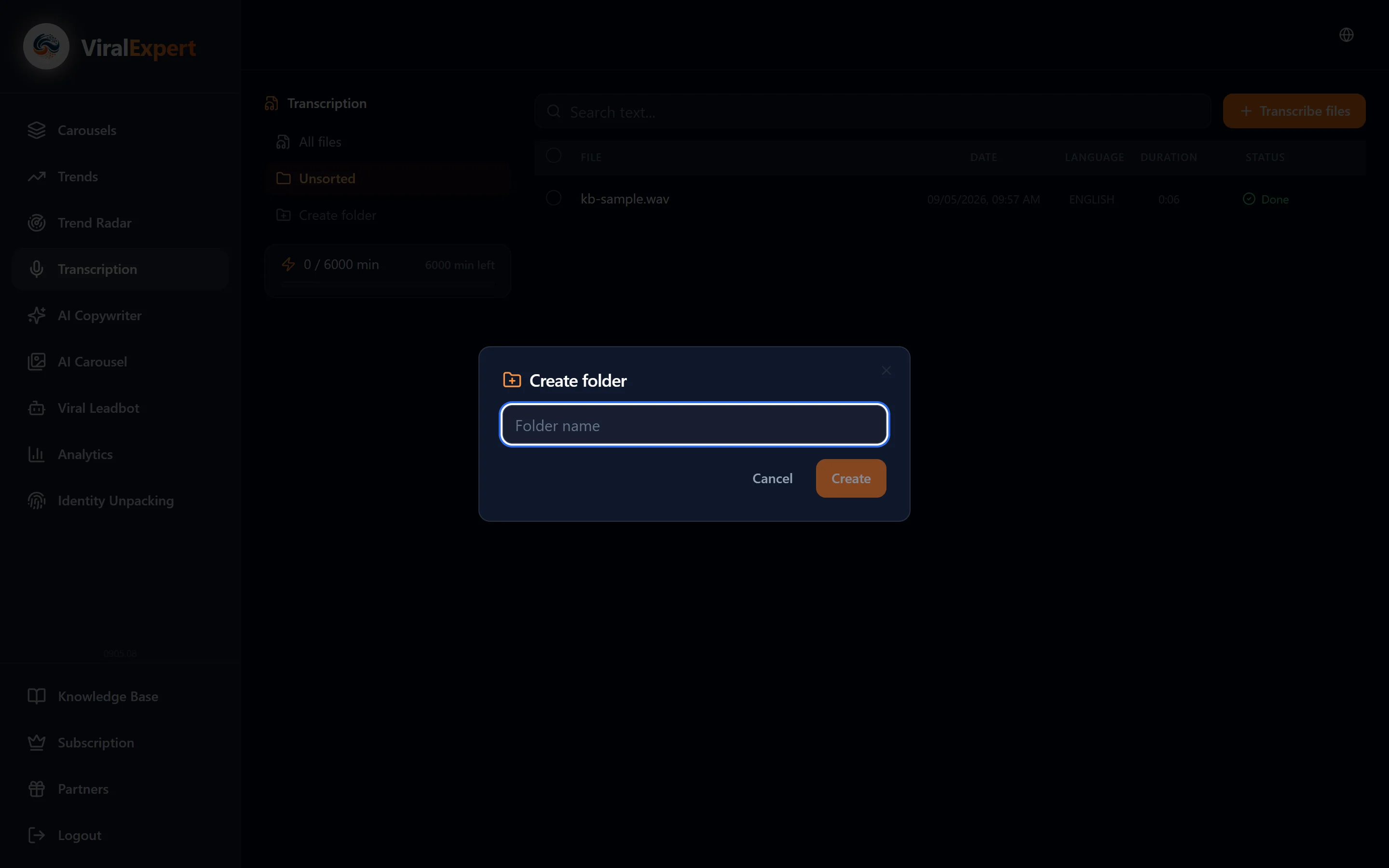
- Folders on the left: “All files”, “No folder” and yours. Create, rename and delete a folder from its menu; when deleting, the files move to “No folder”
- The “Search by text...” field searches the contents of transcripts, not just names
- Tick several files — bulk actions appear: export, send to Telegram, move to a folder, delete
Important
Deleting a transcript is irreversible. Minutes for an already processed file are not refunded.
FAQ
Ready to try?
Every tool is free to start. No card required.