Carousels
Slide editor: text → a branded carousel for Instagram, TikTok, LinkedIn and Telegram.
11 steps≈ 6 minDesktop · Mobile
The carousel generator turns text into ready-made branded slides. Paste your text — it spreads across slides; set fonts, background and branding, then download images or a PDF, or send the carousel straight to Telegram. Below is every step with a screenshot: where to click and what happens.
Step-by-step guideDesktop version
Create a new carousel
- Go to the “Carousels” section in the sidebar
- Click the orange “+ Create carousel” button in the top right corner
- The editor opens for working with the text and design of the slides
Tip
The carousel is saved automatically — the draft appears in “My carousels” right away, even if you close the tab.
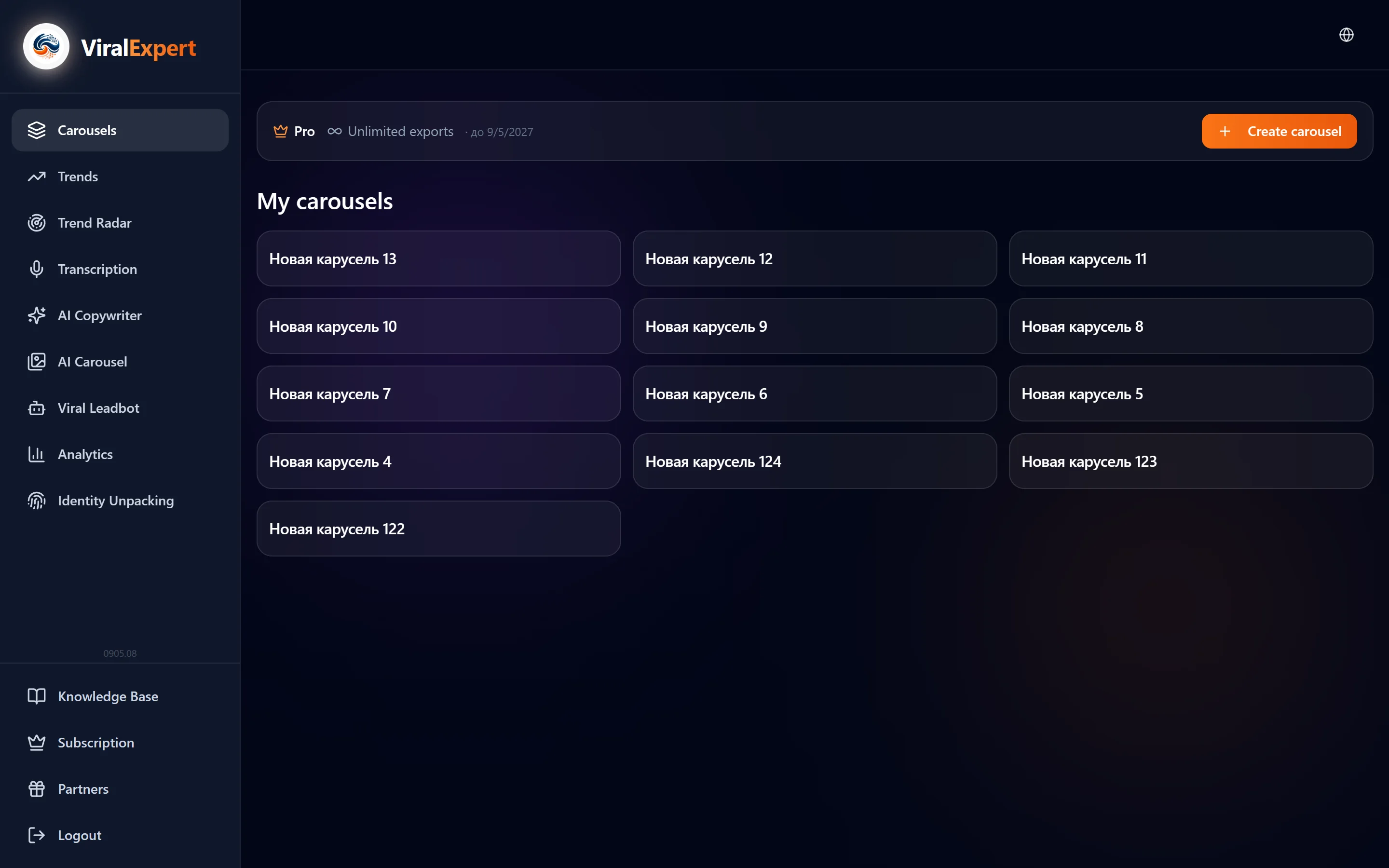
Take the onboarding tour
- When you create your first carousel, a step-by-step tour starts automatically
- It walks through every element of the editor and shows what each button does
- Click “Next” to move on or “Skip” to close it
- To run it again, click the ? icon in the top bar
Tip
You can restart the tour at any time — the “?” button in the editor's top bar.
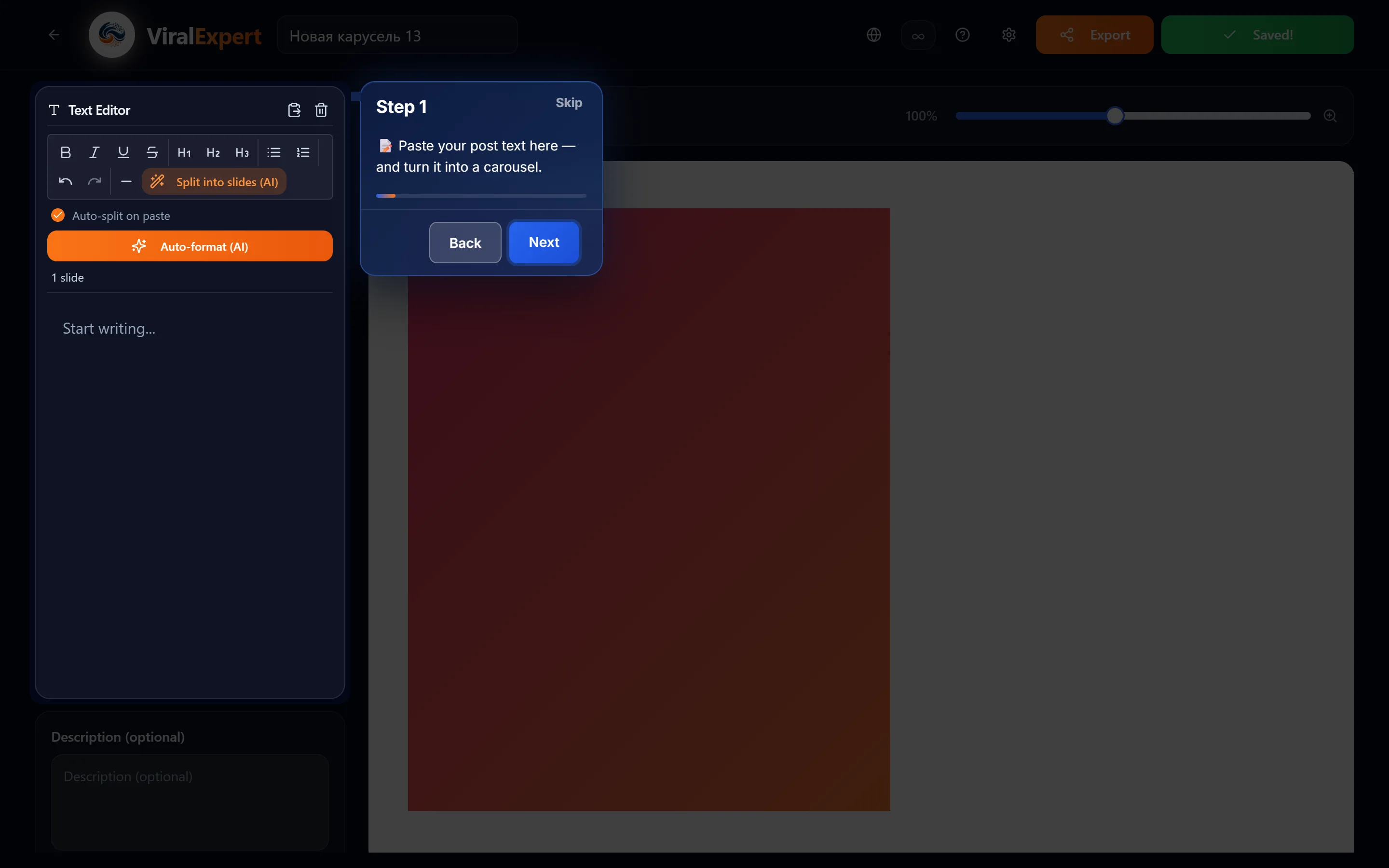
Paste your text and split it into slides
Auto-split (default)
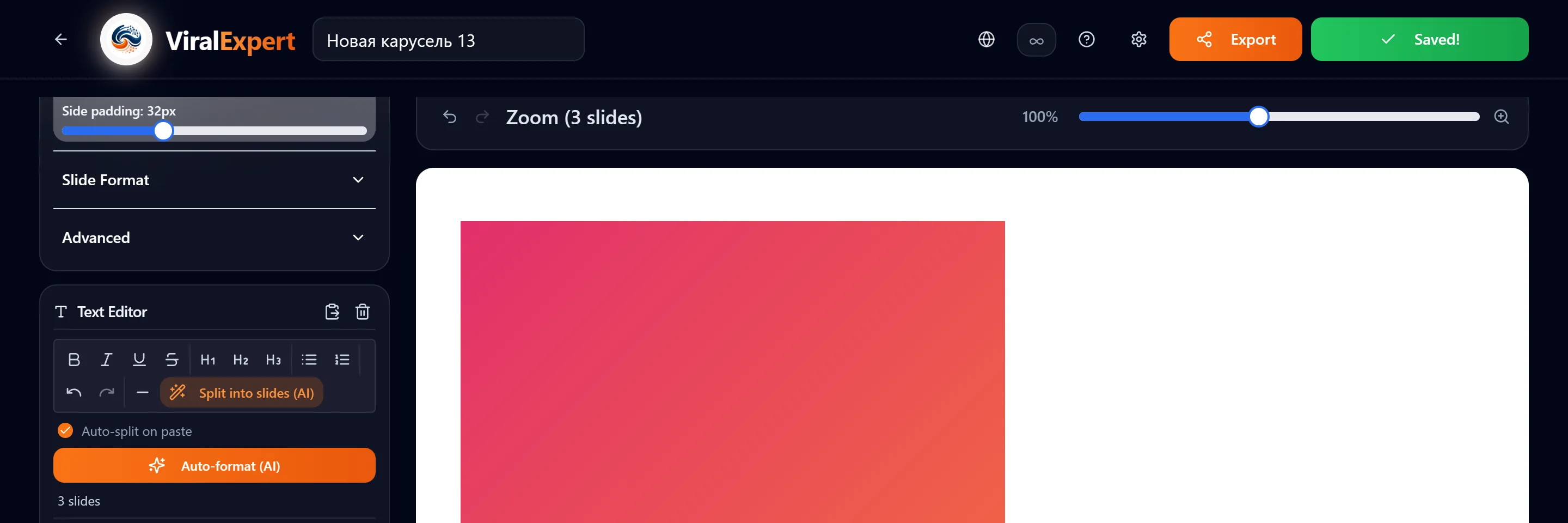
- Paste your text into the “Text editor” field
- If “Auto-split on paste” is on, the text splits automatically
- The system looks for empty lines (gaps between paragraphs)
- Each slide gets at least 150 characters. The first and last may be shorter
AI split
- Untick auto-split and click “Split into slides (AI)”
- The AI puts one idea on each slide
Auto-format
- After splitting, click “Auto-format (AI)”
- The AI finds headings and bolds the key words
Manual formatting
- Bold, italic, underline, strikethrough
- Headings H1, H2, H3
- Bulleted and numbered lists
- Undo and redo arrows
- Horizontal line (—) to split slides by hand
- “Paste” button and the trash can at the top — paste from the clipboard and clear everything
Important
Auto-split relies on empty lines. If the whole text is one paragraph, it lands on one slide. Separate paragraphs with an empty line or use the AI split.
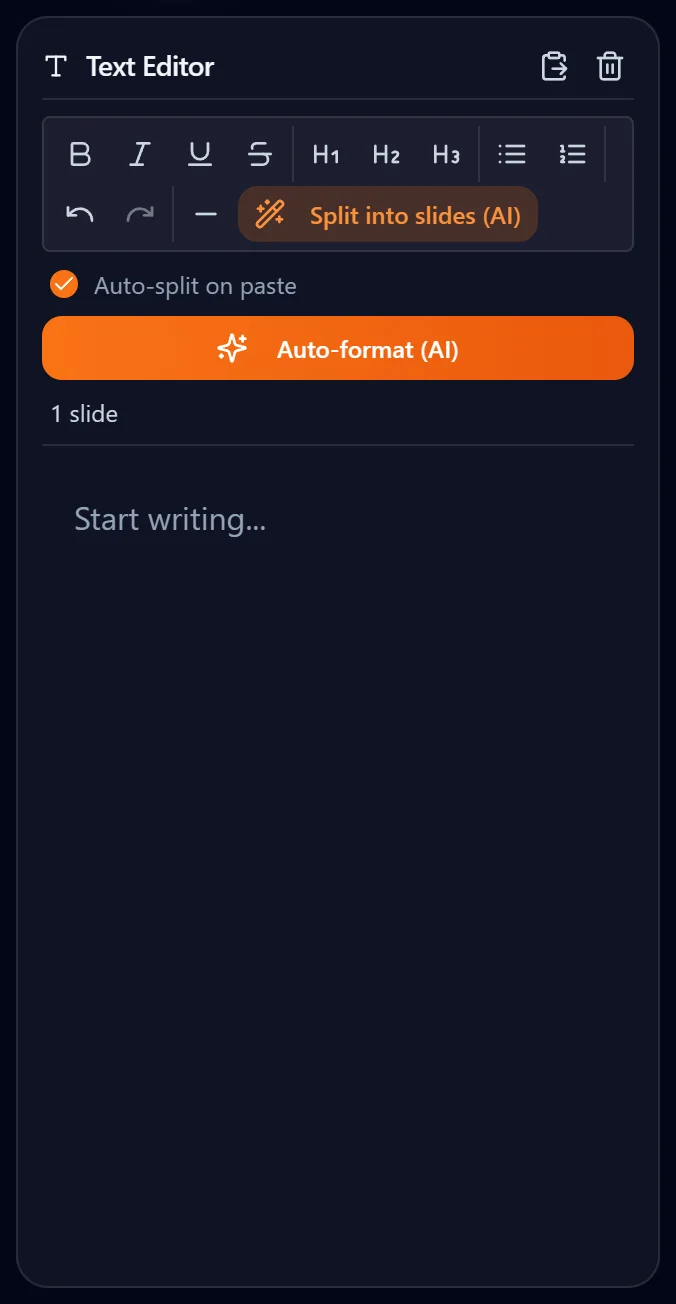
Add a description (optional)
- Below the text editor there is a “Description” field
- Write the caption for the carousel — the text under the post on Instagram, TikTok or another network
- When sending to Telegram, the description goes along with the slides as a caption
- The field is optional
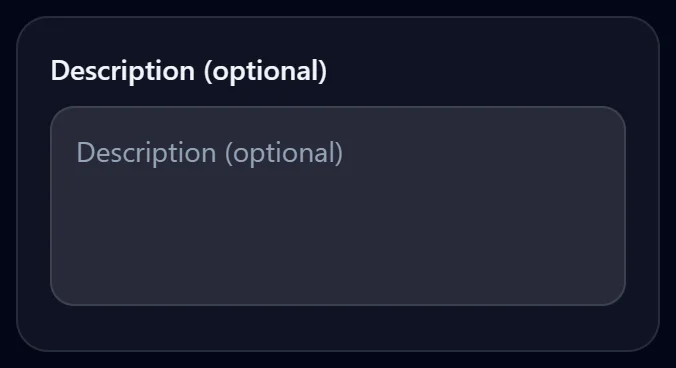
Zoom and undo
- The slider above the slides enlarges or shrinks the preview
- Handy when you need to see all slides at once or look at one up close
- The “back” and “forward” arrows on the left undo and redo the latest actions
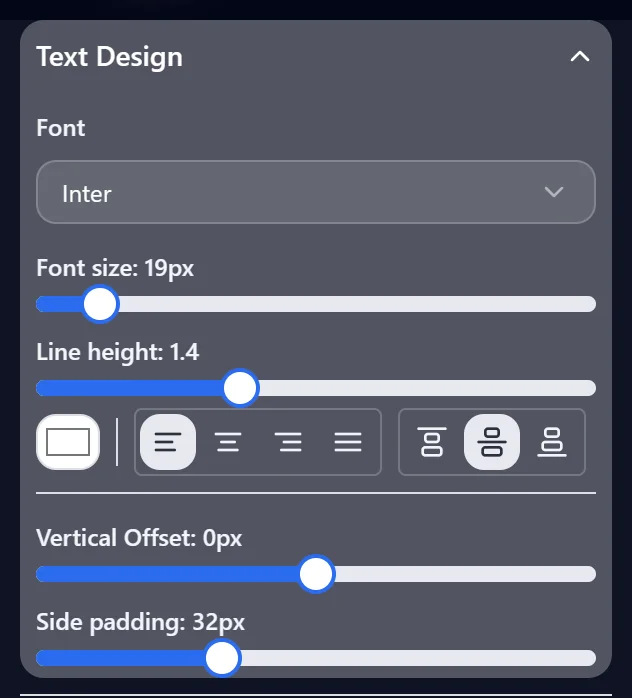
Slide settings — Text design
The “Global” mode is on by default — changes apply to all slides at once.
Available settings
- Font — pick from the list
- Font size — slider (px)
- Line height
- Horizontal alignment — left, center, right, justify
- Vertical alignment — top, center, bottom
- Vertical offset — shifts the text block
- Side padding — distance from the text to the edges
Tip
“Global” mode changes all slides at once. To adjust a single slide, see step 9.
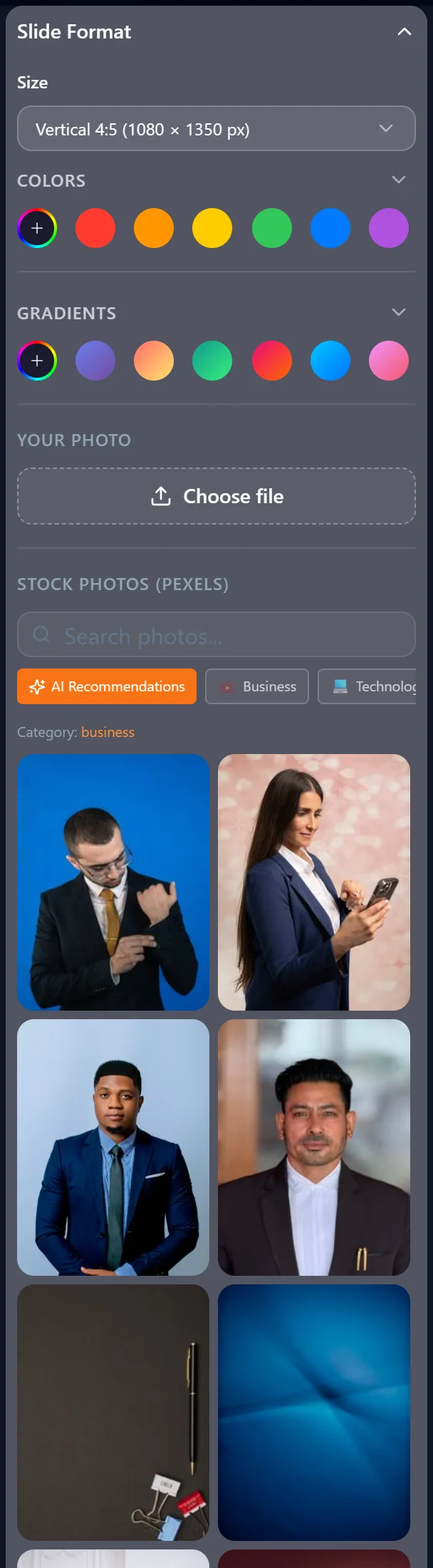
Slide format — size, background, photos
Slide size
- Portrait 4:5 (1080×1350) — default, the most popular for Instagram
- Square 1:1 (1080×1080)
- Portrait+ (1080×1440)
- Stories (1080×1920)
Background
- Solid colors — palette or your own color
- Gradients — presets or two colors with a direction
Photos
- Upload your own photo as a background
- Stock photos (Pexels) — search or AI Recommendations for the carousel's topic
- Darkening — adjustable, black by default, any color available
- Apply the photo to all slides or only the first one
Important
Changing the size after splitting may change line breaks — check the slides in the preview.
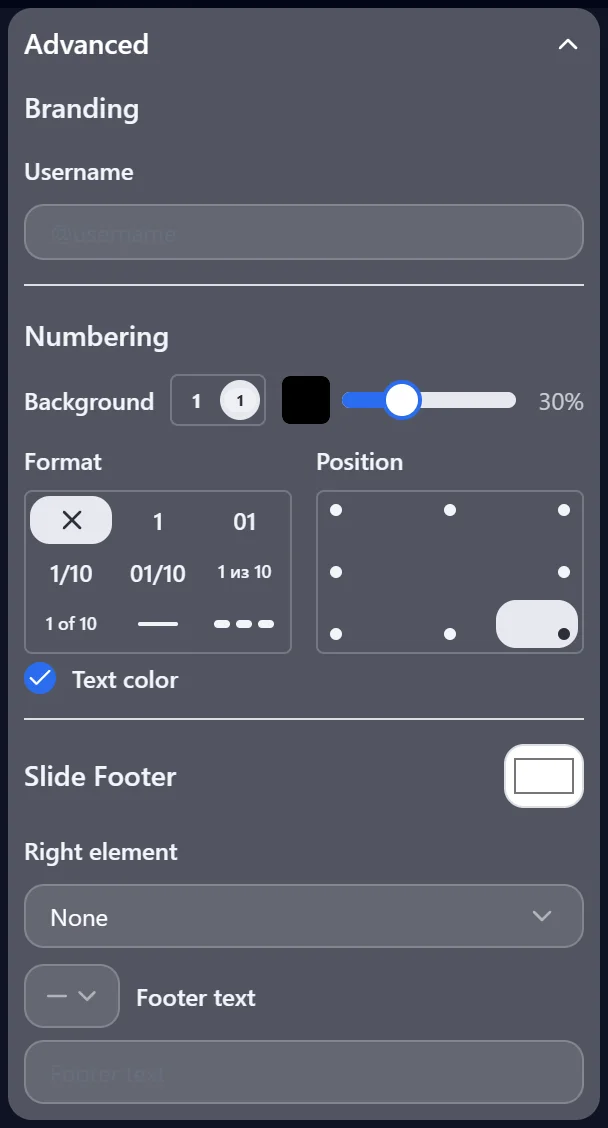
Extras — branding, numbering, footer
Branding
- Enter your username and upload an avatar
- Avatar outline: solid color or gradient
- Branding scale slider
- Positions: top + avatar, bottom, side, Instagram header (with a dark gradient)
Slide numbering
- Formats: plain (1), zero-padded (01), fractions (1/10), text (1 of 10), progress line, dots
- Choose the position on the slide
- Background under the number (optional)
Slide bottom (Footer)
- Right element: Instagram interface, call-to-action arrow (15 variants), “Save” button (5 variants)
- Text with a link or info icon
- Footer text field
Note
The “Instagram header” position adds a dark gradient at the top — text stays readable on a light photo.
Editing a single slide
- Switch to the “Single slide” tab in the settings
- Click the slide you need in the preview
- All the same settings as in global mode are available
- After the changes, click “Save” under the slide
- To go back to editing all slides, switch to “Global”
Important
Elements changed in “Single slide” mode no longer follow the global settings — they keep their individual values.
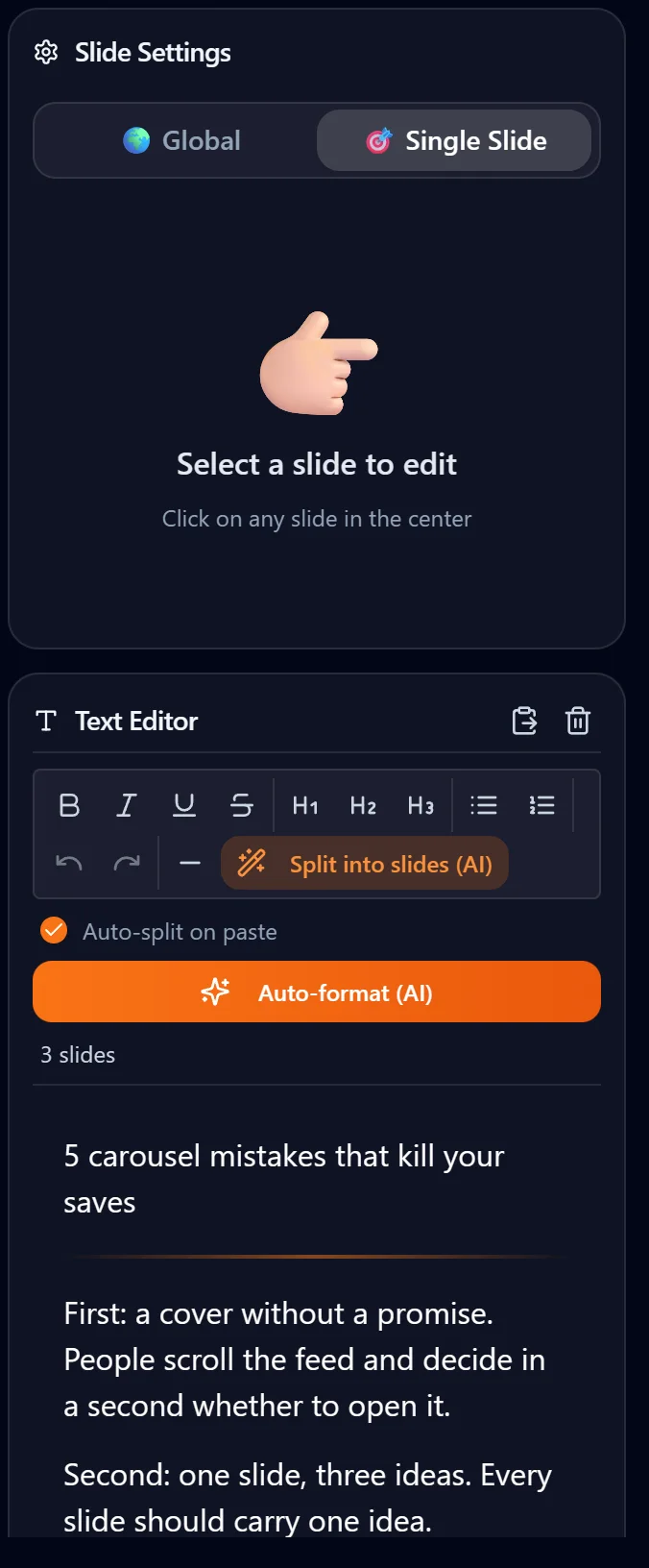
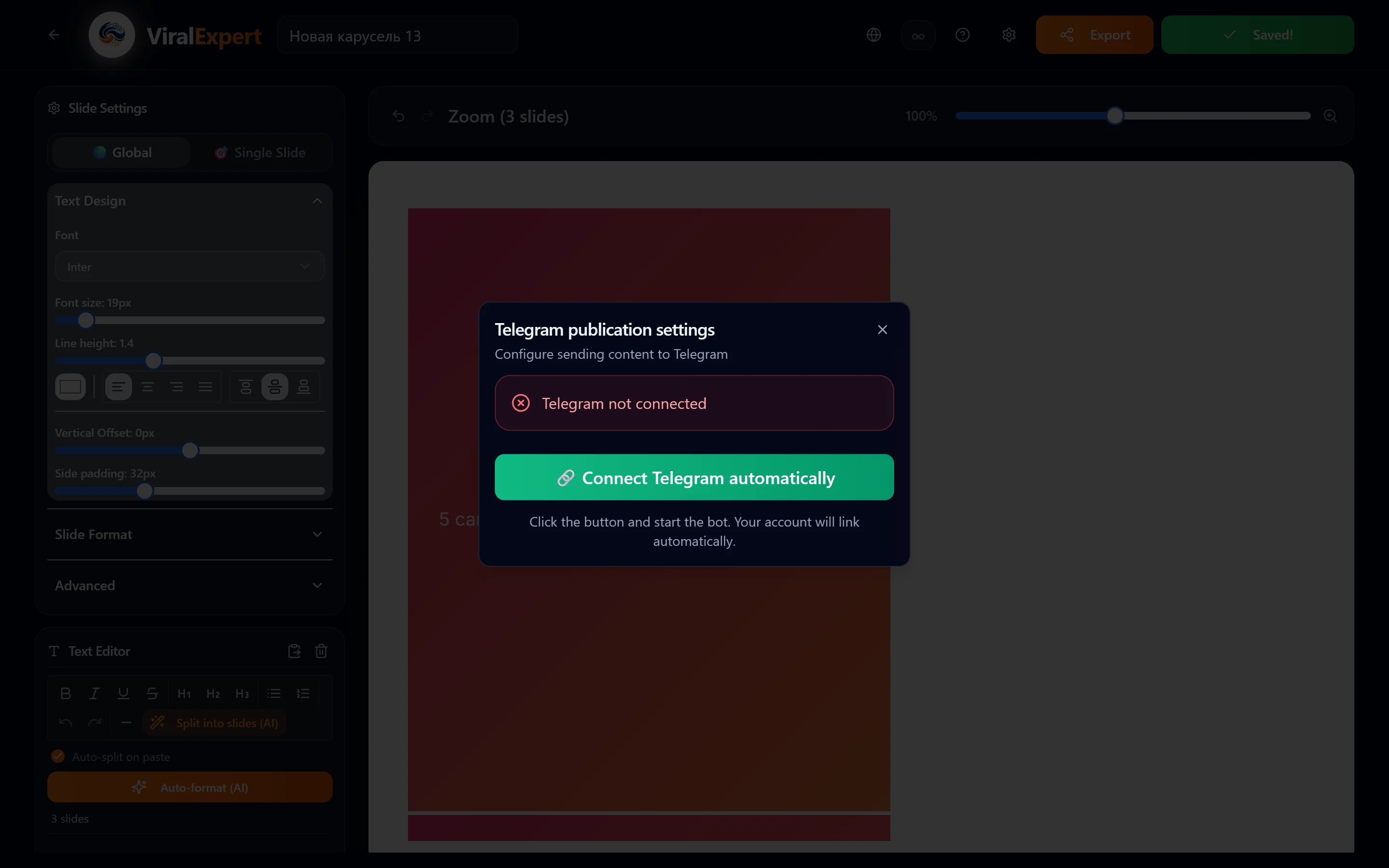
Connecting Telegram for export
- Click the gear icon ⚙ in the top bar
- Click “Connect Telegram automatically”
- The ViralExpert bot opens in Telegram
- Once connected, you can export content straight to Telegram
Note
The bot works for the whole platform — set it up once and use it everywhere: carousels, copywriter, trends.
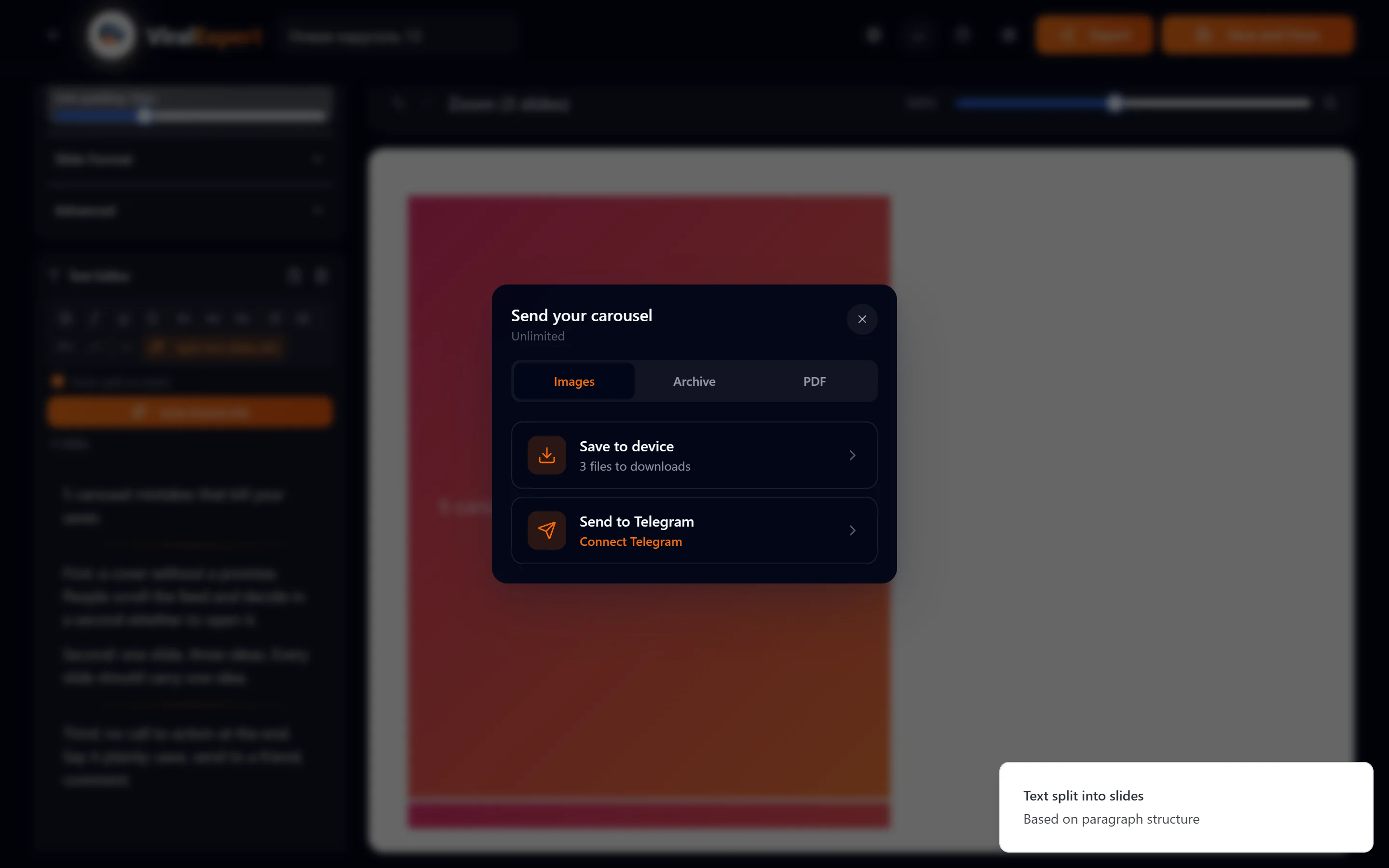
Exporting the carousel
Click the “Export” button in the top right corner.
Export options
- Download — a ZIP with JPEG slides or separate files. PDF is available on Pro/Pro+
- Telegram — send the slides or a PDF to the bot
- Share — the device's built-in share sheet (handy on mobile: Instagram, TikTok, messengers)
- Instagram — direct publishing with scheduling (coming soon)
Export limits
- Only successful exports count
- Start plan: 10 free exports with full functionality
- Pro and Pro+ plans: unlimited exports
Note
Only successful exports count. Start: 10 exports, Pro and Pro+: unlimited.
FAQ
Ready to try?
Every tool is free to start. No card required.