Trend Radar
Spy on creators: which of your competitors' clips took off, why, and how to make your own based on them.
8 steps≈ 8 minDesktop · Mobile
Trend Radar scans creators' Instagram profiles, compares every clip with the author's usual level and highlights the “breakouts” — those that performed well above the norm. For any clip the AI makes a breakdown: what's said, what's on screen, a ready brief for the copywriter. Results can be filtered, exported to a spreadsheet, saved to favorites and the archive, and creators can be kept in lists by niche.
Step-by-step guideDesktop version
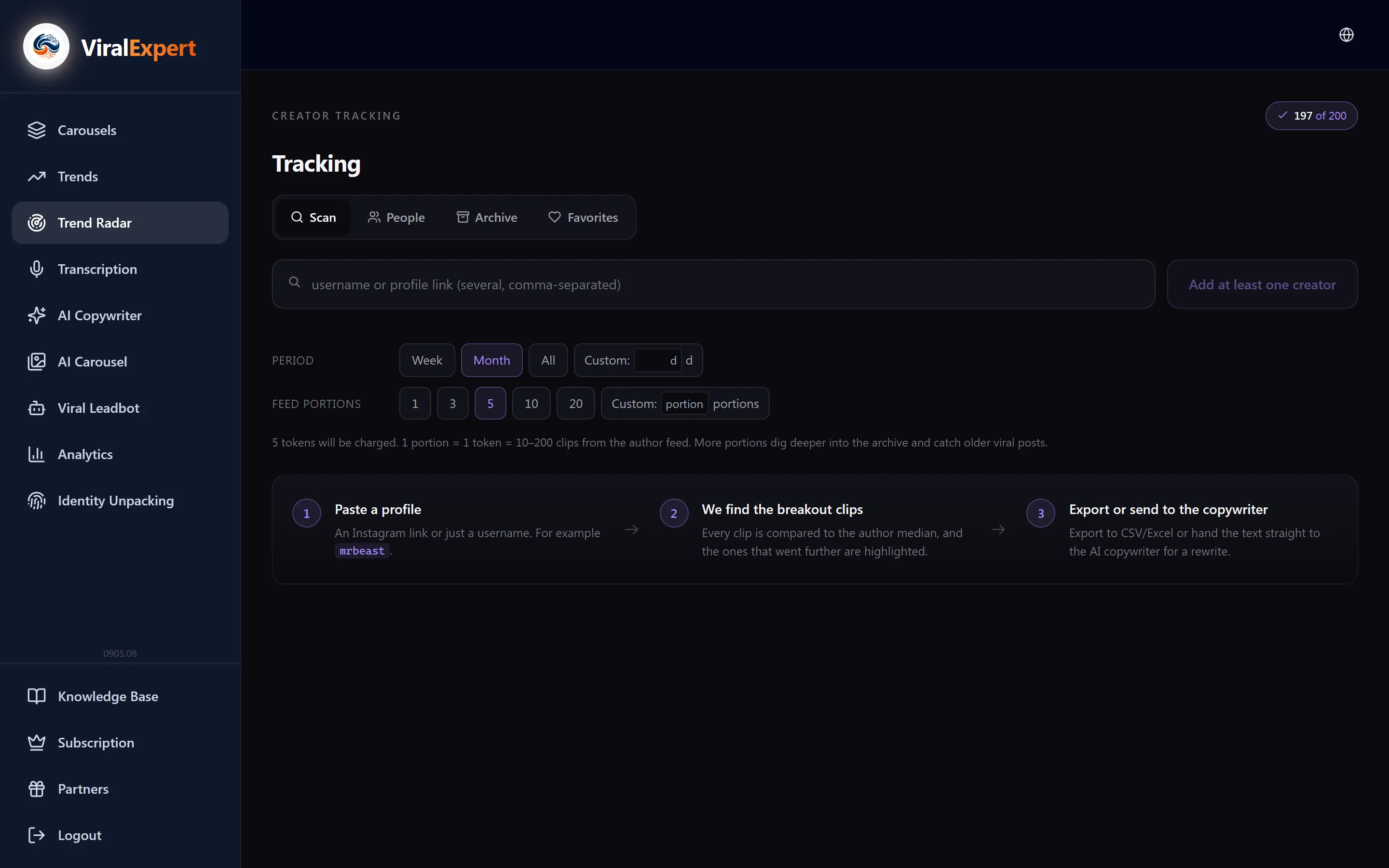
Open Trend Radar and check your tokens
- In the sidebar click “Trend Radar”
- Four tabs: “Spy” — scanning, “People” — creator lists, “Archive” — past scans, “Favorites” — saved clips
- The balance badge shows scan tokens: “X of Y” plus bonus ones, if any
Note
1 token = 1 portion of an author's feed = 10–200 clips. Start — 20 tokens, Pro — 100, Pro+ — 200. When the scans run out, the badge shows “0 scans — upgrade your plan”.
Paste the profiles
- In the field on the “Spy” tab paste an Instagram username or profile link; several — separated by commas, each becomes a chip
- It has to be a link to the profile, not to a clip or post
- The profile must be public: the server can't read private accounts
- Instagram is supported for now; TikTok is in the works
Tip
Creators from a list in the “People” tab can be moved into the form with one “Scan all” button — no need to remember handles.
Set the period and depth, check the cost
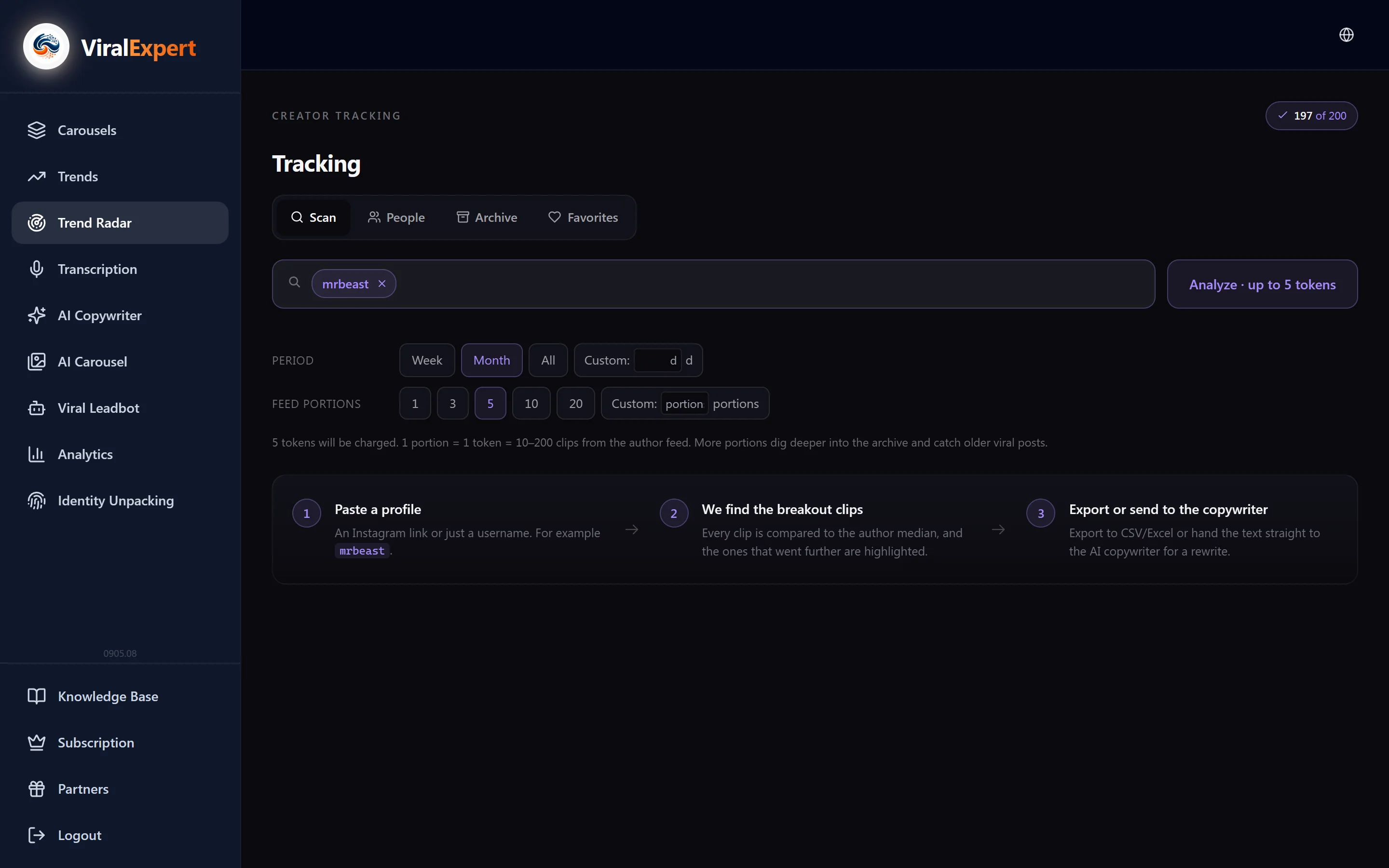
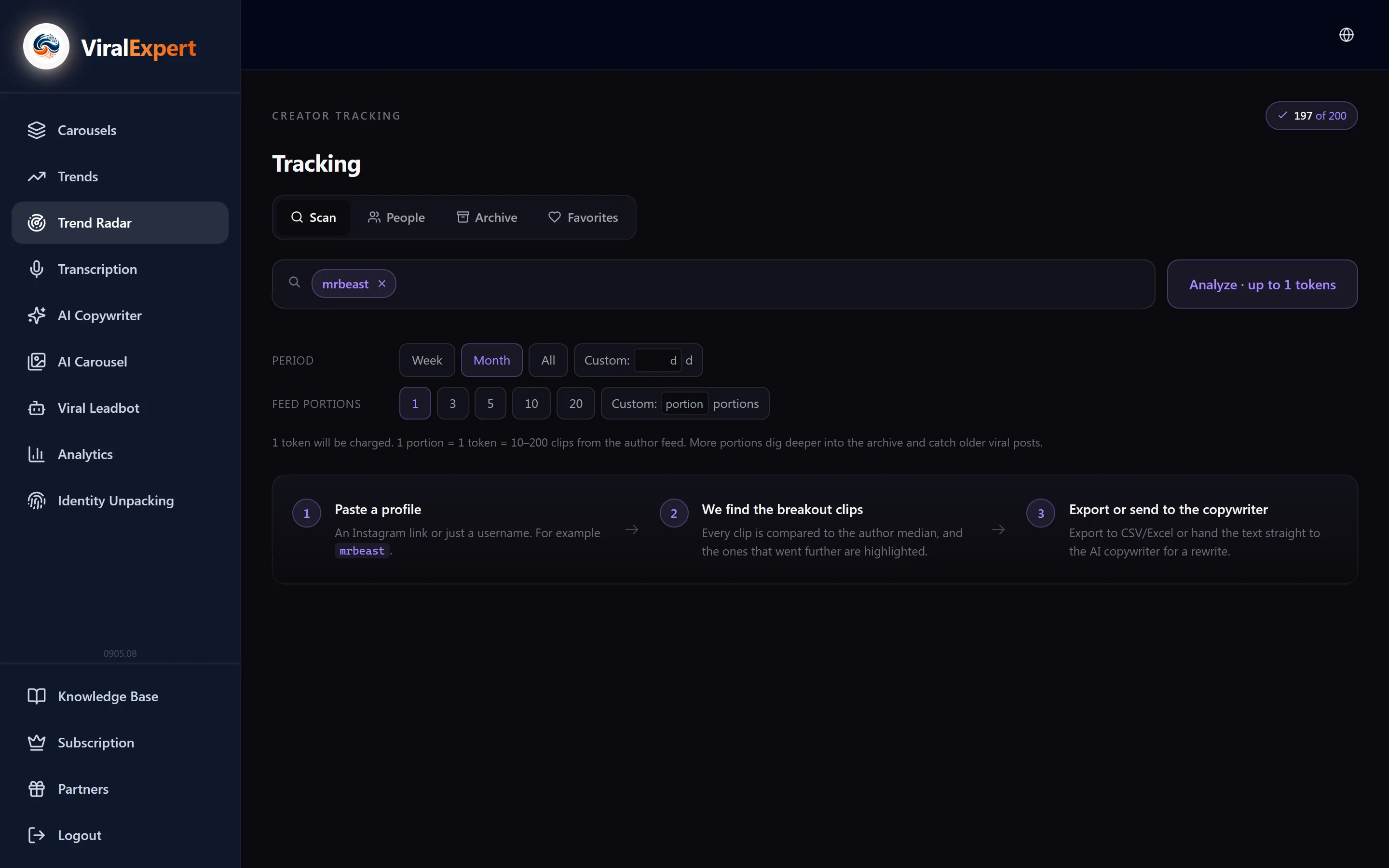
- Period — Week, Month, All or custom in days: how far back to look at clips
- Feed portions — how many portions to take from each author. More portions — deeper into the archive, catching old viral clips
- Under the form is the estimate: “N will be charged” for one author or “N each · authors × N = total” for several
- The “Analyze · up to N tokens” button starts the scan; if there aren't enough tokens, the button says how many are needed
Note
No more than the reserved amount is charged: if the author has fewer clips than portions, the remainder is returned — you'll see “Charged X of Y (saved Z)”.
Read the result
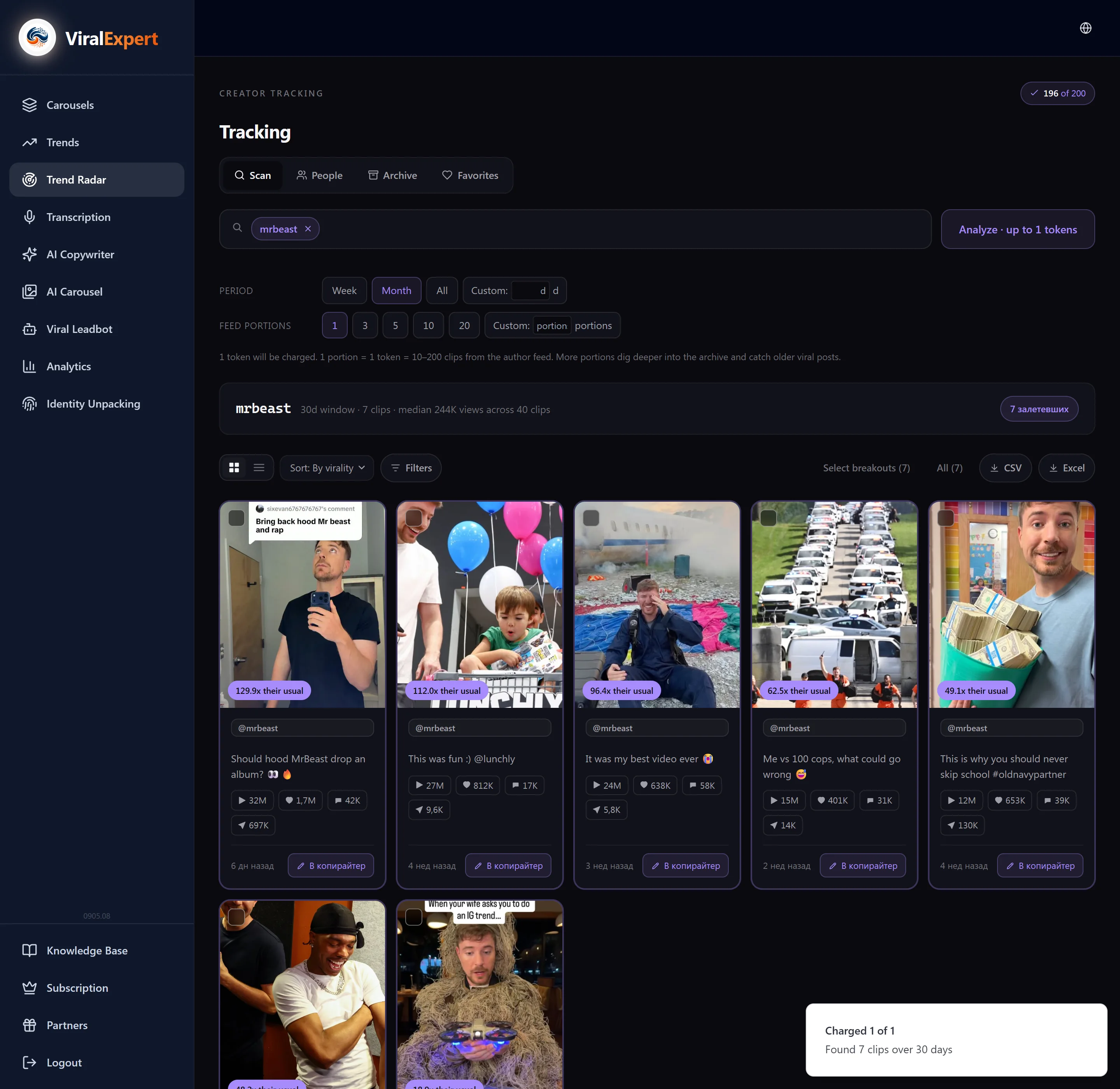
- At the top is the author's baseline: the median views over N clips in the window. This is the “norm” every clip is compared with
- Breakout — a clip that beat the author's median; Ratio shows by how much
- Badges: Breakout, Fresh (too new, little data), No baseline (the author has fewer than 5 “mature” clips in 120 days), Normal
- If the portions didn't cover the whole period, a warning appears with a “Rerun · N portions” button
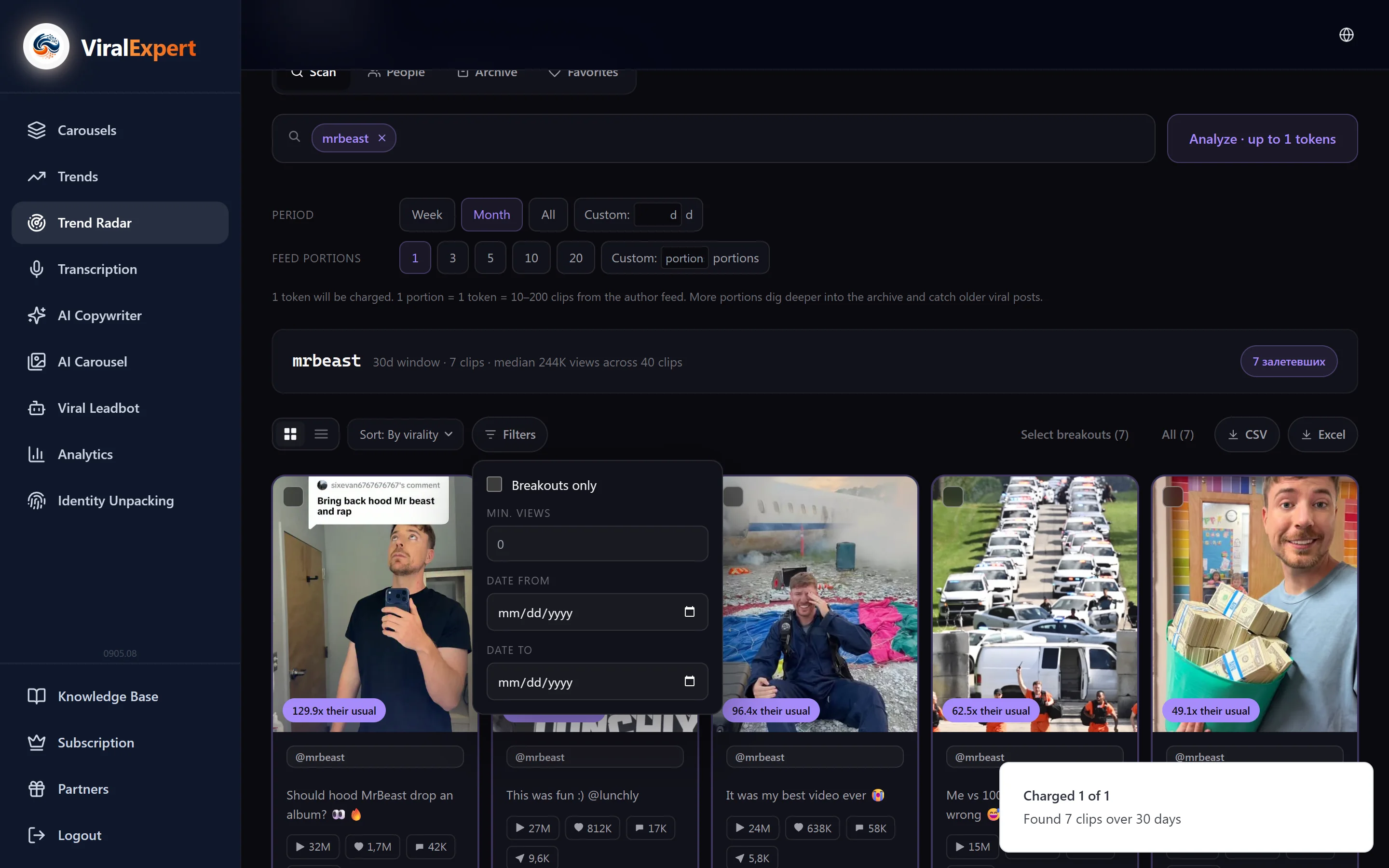
Filters, sorting, view
- View: cards or table (post, author, date, plays, likes, comments, shares, ratio)
- Group by: all together or by author
- Sort: by virality (ratio), by date, by plays
- Filters: breakouts only, minimum plays, date from/to; “Reset all” puts everything back
- The “showing X of Y” counter tells how many clips the filters hide
Open a clip: breakdown and brief
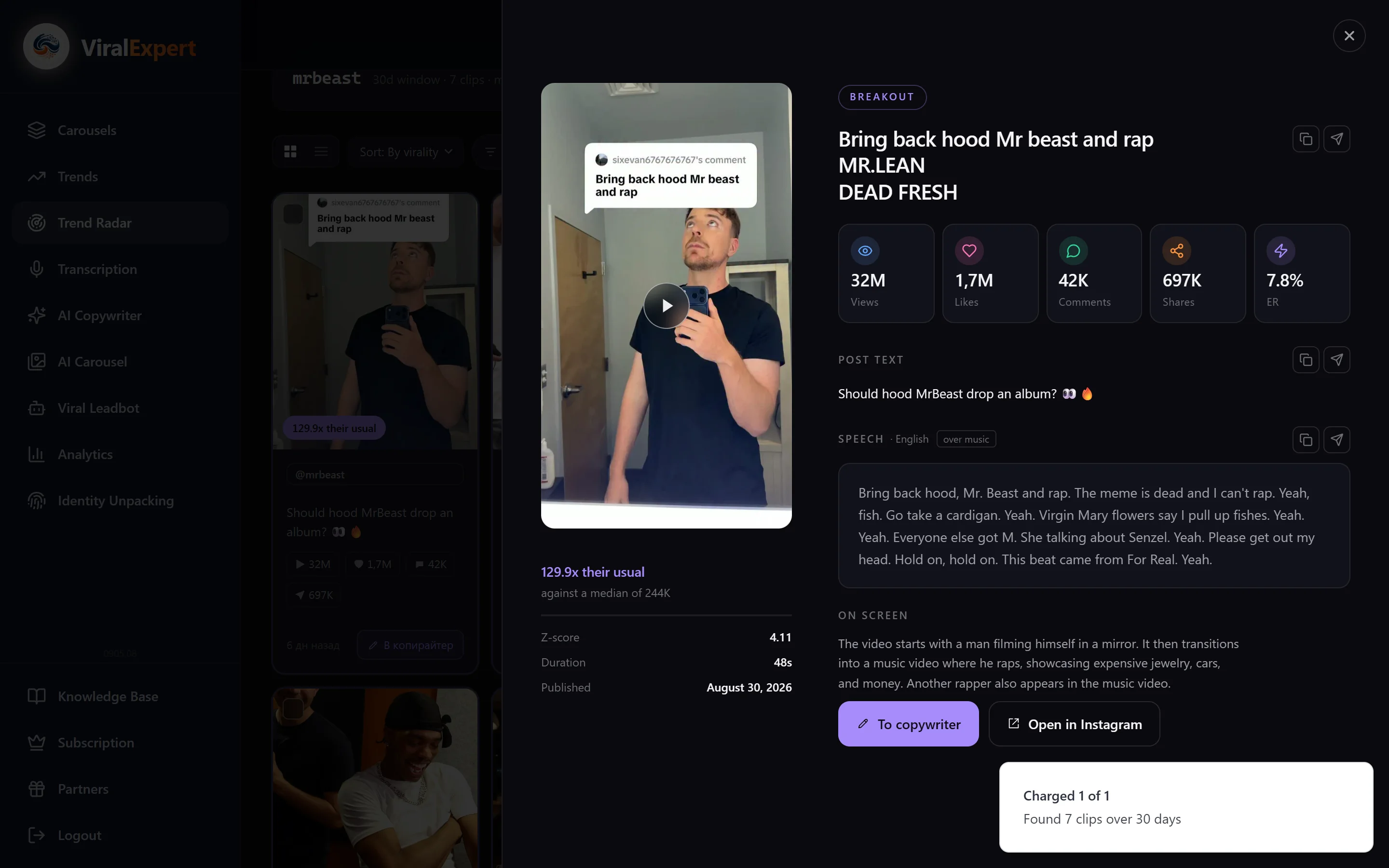
Click a card or “Open details” in the table — the clip panel opens.
- Metrics relative to the author's median, duration, publish date, headline and post text
- AI watches the clip (7–15 seconds the first time, instant after): “Speech” — what's said, including over music, “On screen” — what's shown
- “Ready brief for the copywriter” — a digest for a rewrite; the “To copywriter” button makes it the topic
- Any block can be copied or sent to Telegram; “Open in Instagram” leads to the original
Important
The brief is a breakdown of someone else's clip. Write your own post in your own voice — don't copy the author's text.
Export, favorites and creator lists
- Tick clips (“Select breakouts” or “All”) and click “Download .csv” or “Download .xlsx”
- Hover over a clip and click ♡ — it's saved to the “Favorites” tab forever
- “Save N authors as a list” creates a list in the “People” tab
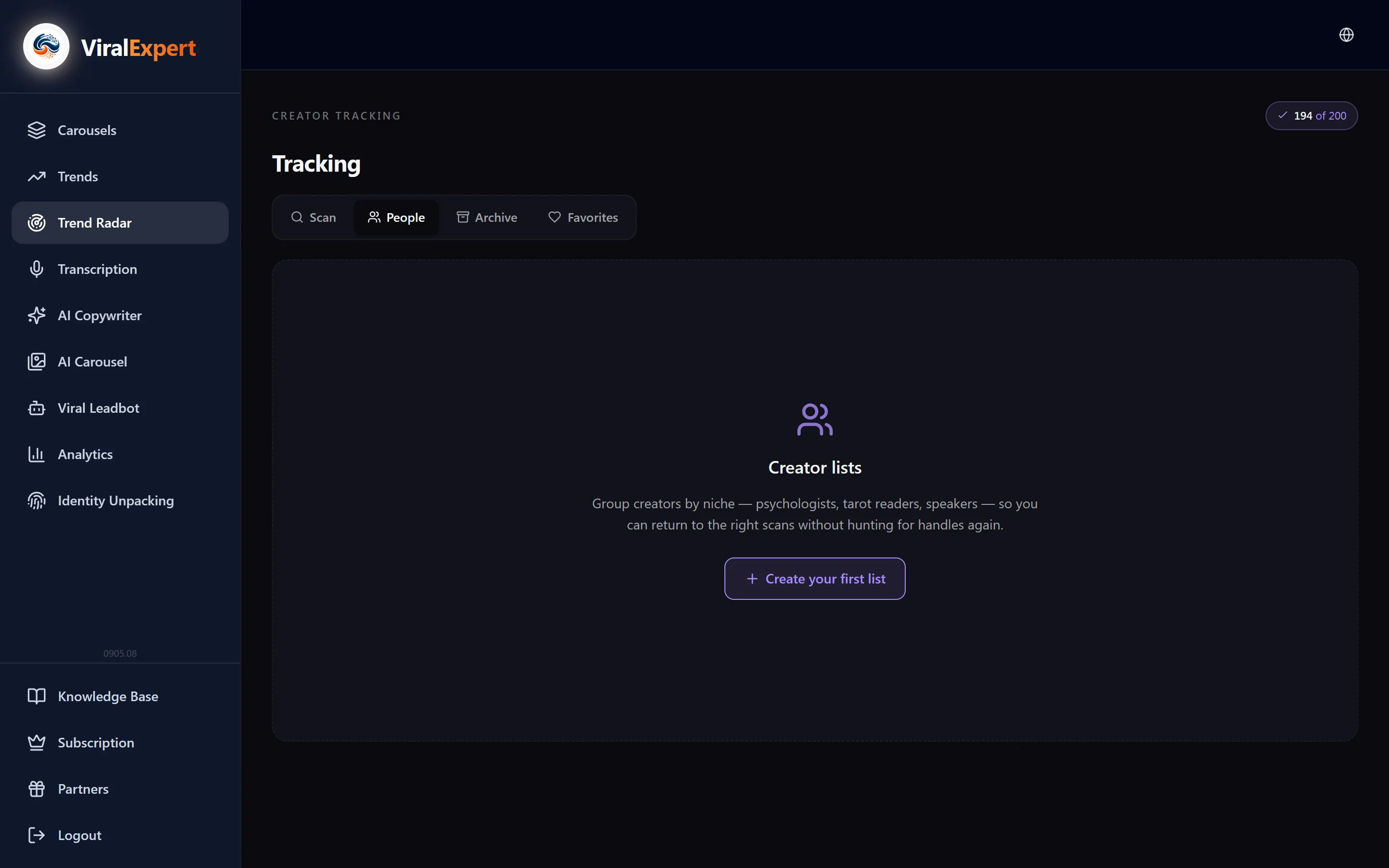
- In the “People” tab: create a list (“Psychologists”, “Tarot readers”), add a username, analyze one or scan all at once, rename or delete a list
Scan archive
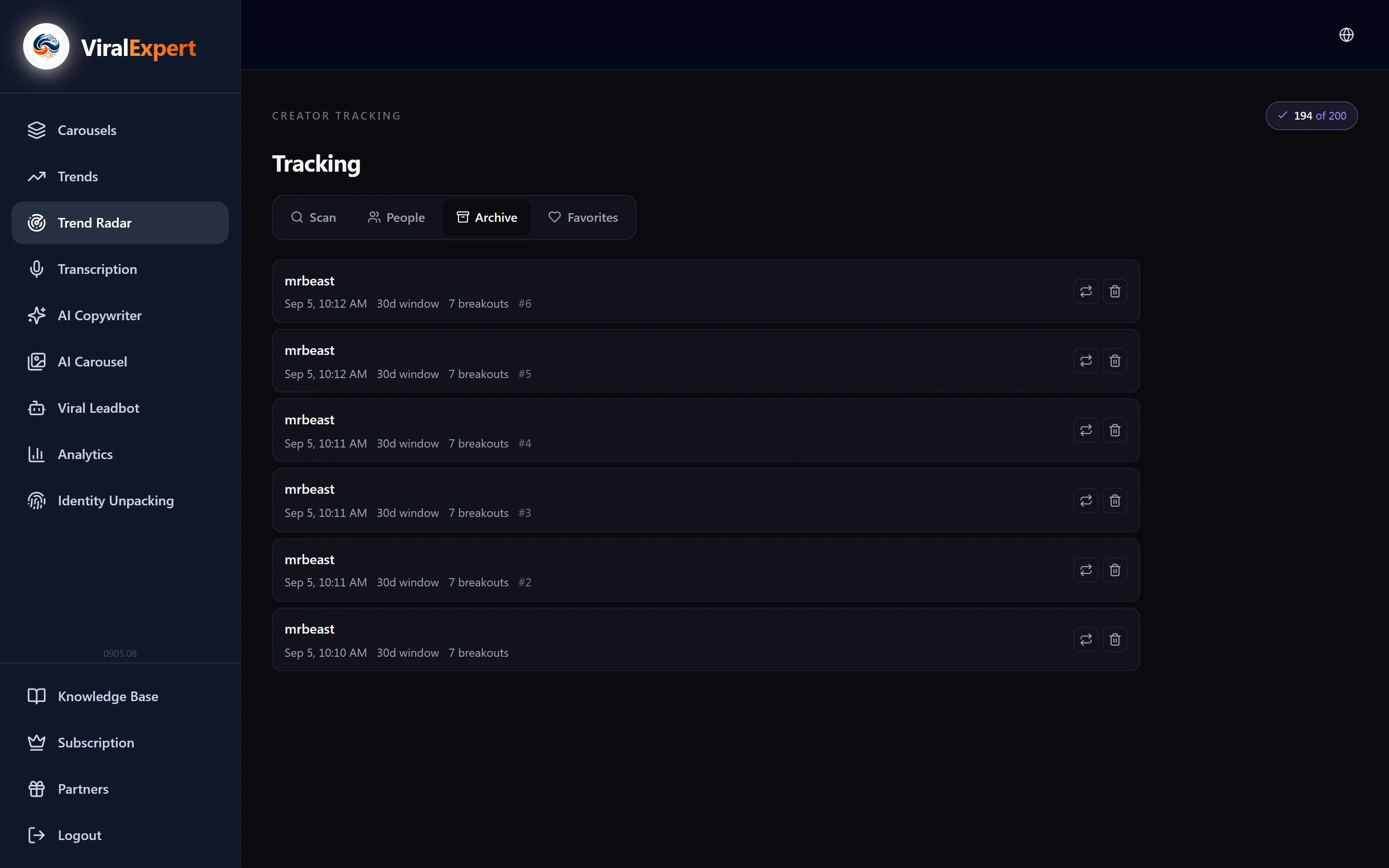
- The “Archive” tab keeps every run: date, window, how many clips and breakouts, how much was charged
- “Open scan” shows the saved snapshot; for a batch of authors — “View all together” or just one
- “Rescan” starts a new scan with the same settings; “Delete from archive” removes the entry
- Snapshots are kept for 180 days, then a “snapshot expired” mark appears — rescan the author
FAQ
Ready to try?
Every tool is free to start. No card required.