Payment and renewal
How to get Pro, paying by card, changing the plan, token and slide packs, cancelling the subscription and charge problems.
6 steps≈ 5 minDesktop · Mobile
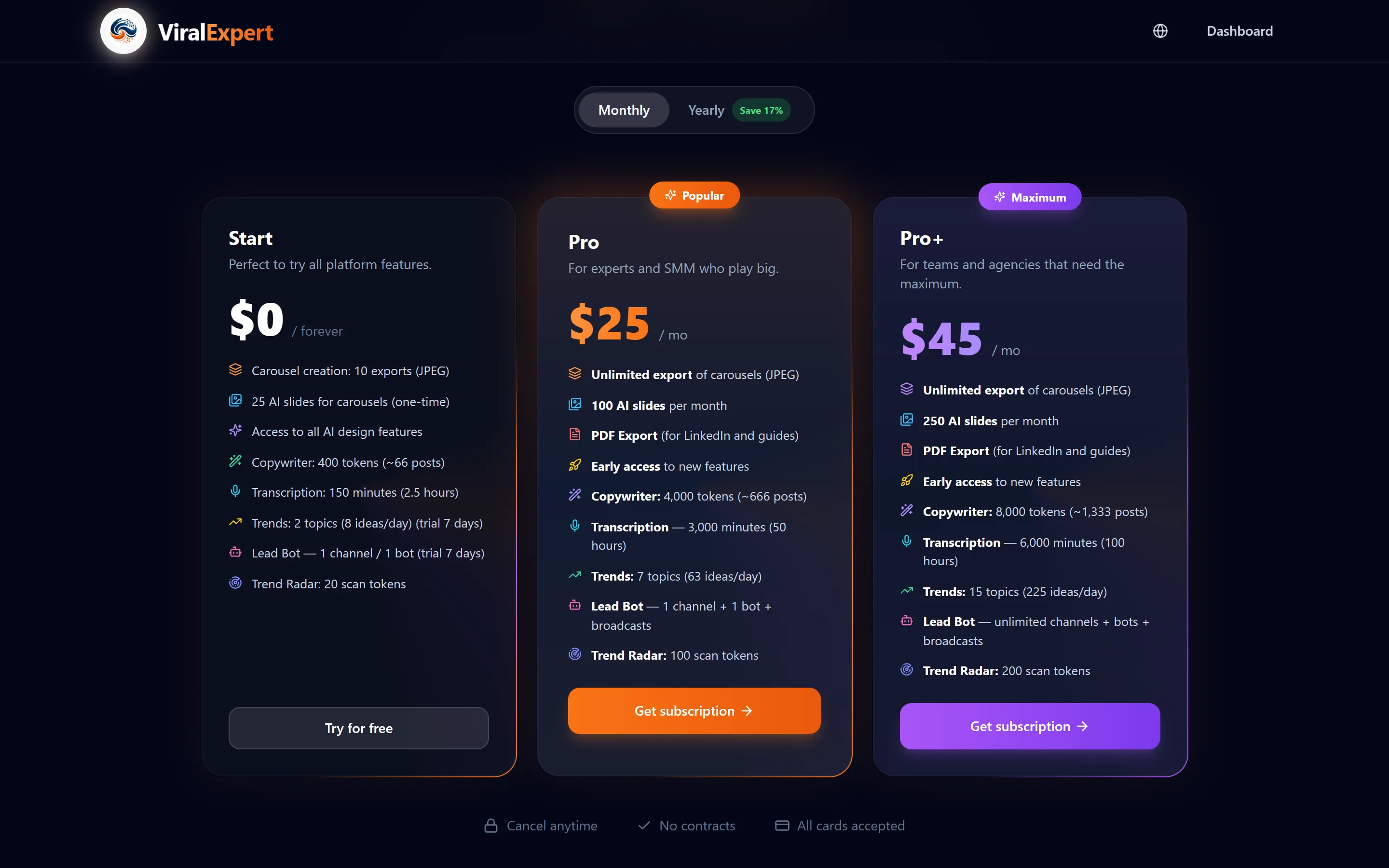
The subscription is set up in the dashboard's “Subscription” section. Card payments go through Stripe or Lava. The plan can be upgraded right away with a prorated charge or downgraded from the renewal date, token and slide packs can be bought, and cancelling keeps the Pro features until the end of the paid period.
Step-by-step guideDesktop version
Subscribe
- Open “Subscription” in the sidebar (or click “Upgrade Pro” on the main screen)
- In the “Available plans” block switch Month / Year and click “Subscribe” on Pro or Pro+
- The “Choose a payment method” window opens
Choose a payment method
- International card — Visa, MasterCard, AMEX → “Pay via Stripe”: a secure Stripe page opens
- The “Pay as a company” checkbox — for an invoice
- After paying you return to the “Payment successful!” page, and Pro activates right away
Note
If a method is temporarily unavailable, the button says “This payment method is currently unavailable” — try another one or write to support.
Change the plan or period
- In the “Your current plan” card click “Change plan” — a window with plan and period combinations opens
- Upgrade (Stripe): applies right away, today a prorated charge for the remaining days is taken, the next full payment is on the renewal date
- Downgrade: scheduled for the renewal date; until then you stay on the current plan. A scheduled change can be cancelled in the “Your current plan” block
- Via Lava any change is a new invoice: after it's paid the current subscription is cancelled, the remainder for unused days isn't refunded
Buy tokens and AI slides
- Below the plans — the “Extra token packs” (for the copywriter) and “Extra AI slides” blocks
- Pick a pack and click “Buy” → the same payment method choice
- Packs are a one-time purchase: they never expire, stack with the plan quota and are used after it
Important
Packs are available only on Pro and Pro+. On Start, subscribe first.


Payment history and cancelling
- The “Payment history” block — all transactions with dates and amounts
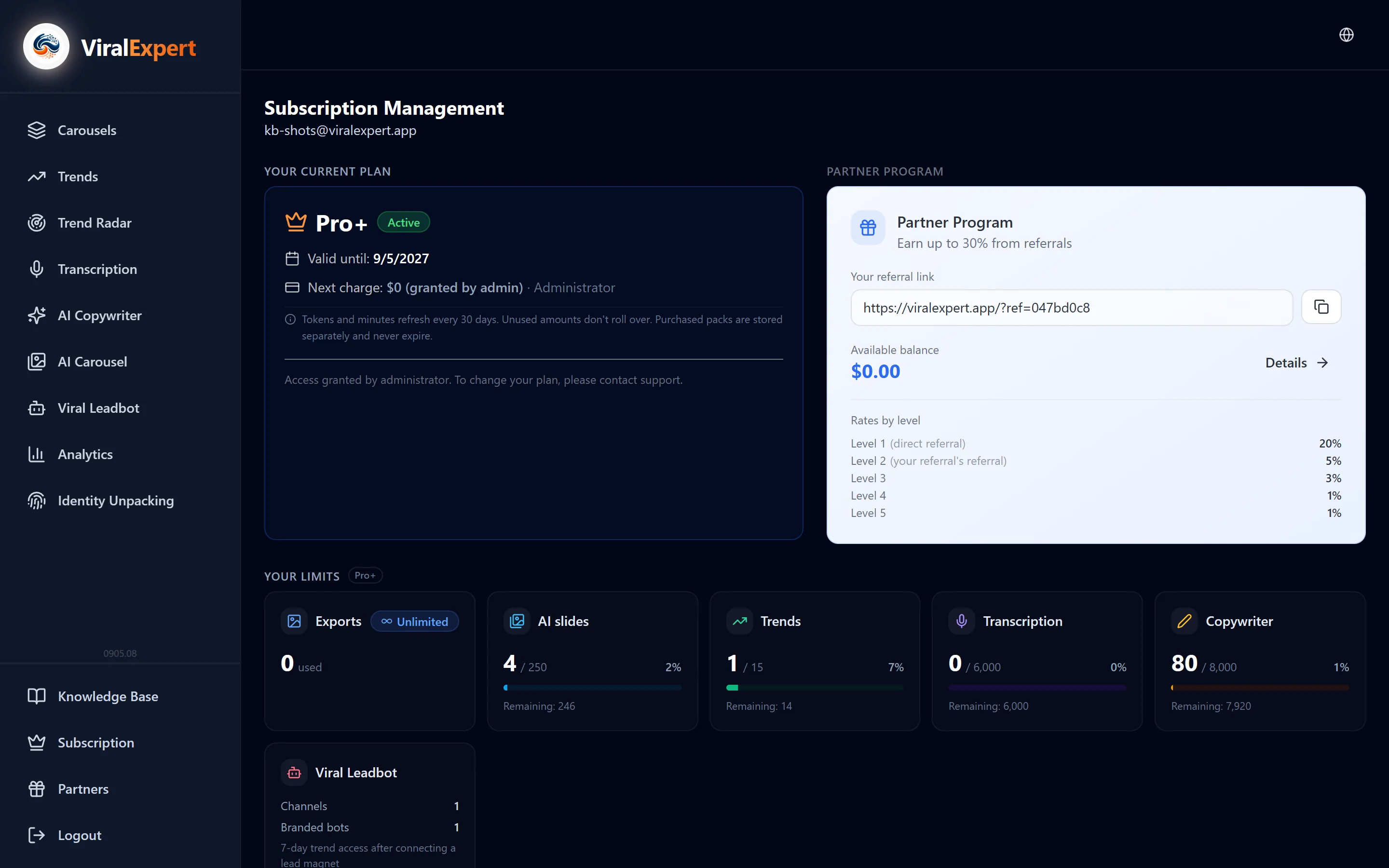
- “Cancel subscription” → confirm: the subscription stays active until the end of the paid period, then the plan changes to Start. The date is shown in the card
- Changed your mind — click “Renew subscription” before that date
- The card also shows the payment method (Stripe, Lava or admin-granted access) and the next charge
If the payment failed
- The card shows “Charge failed” with the date by which you need to update the payment method to keep Pro; the system keeps retrying the current card
- Click “Update payment method” — Stripe's payment management opens
- Typical causes: the payment was declined by the bank, insufficient funds, expired card, wrong CVC, 3D Secure confirmation needed. On an error no money is taken, the current plan keeps working
- A warning about an “active recurring subscription on the payment provider's side” means an old subscription that may charge money — click “Stop charges”
Note
Access granted by an administrator isn't changed via the plan buttons — write to support.
FAQ
Ready to try?
Every tool is free to start. No card required.