Interface and navigation
The sidebar, header, the “Carousels” main screen, the interface language and how it all looks on the phone.
5 steps≈ 4 minDesktop · Mobile
The ViralExpert dashboard is laid out the same way for every tool: the menu on the left, the header with the language on top, the workspace in the center. On the phone the menu hides behind the ☰ button. This section is a map of the dashboard: what lives where and how to get there quickly.
Step-by-step guideDesktop version
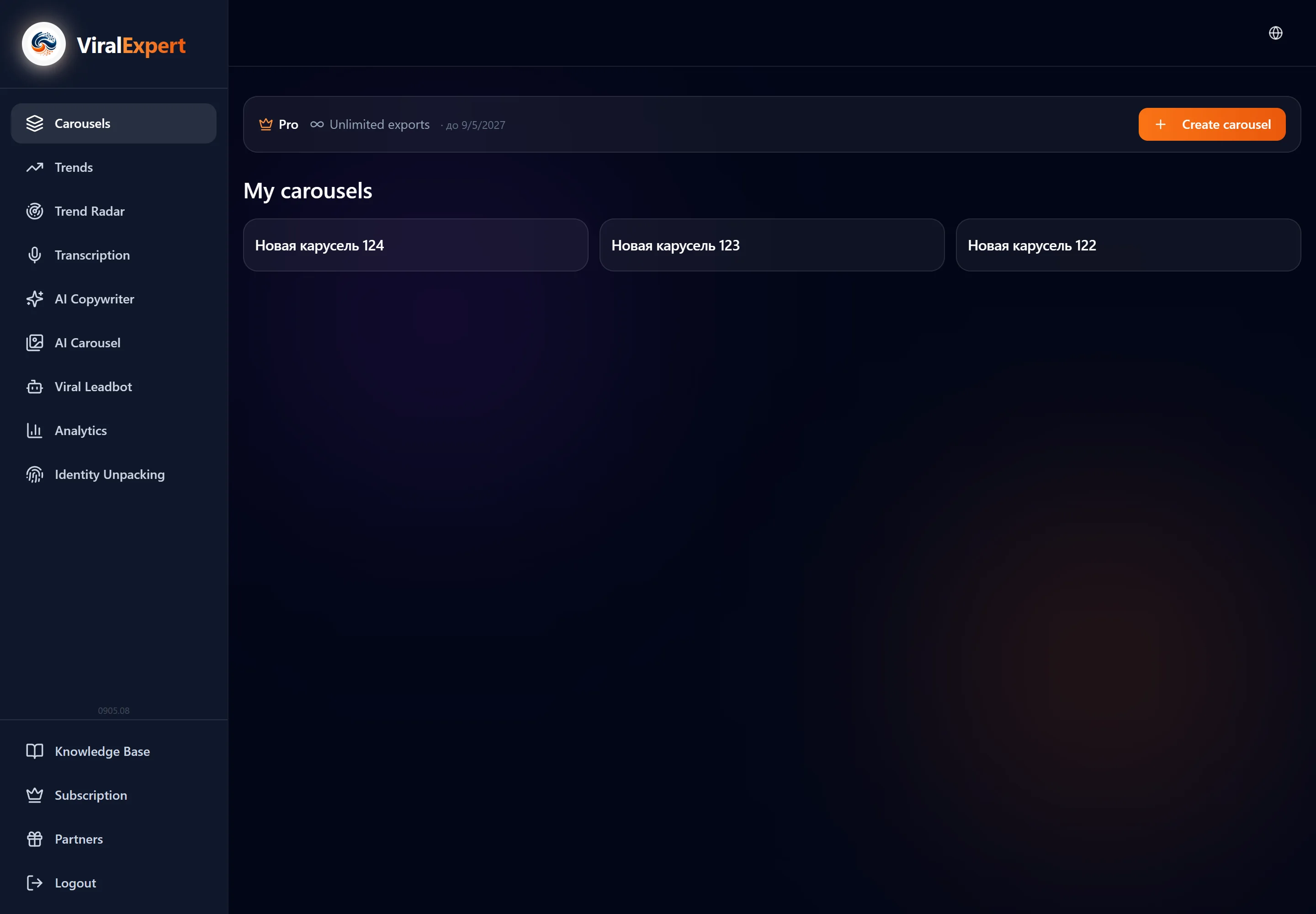
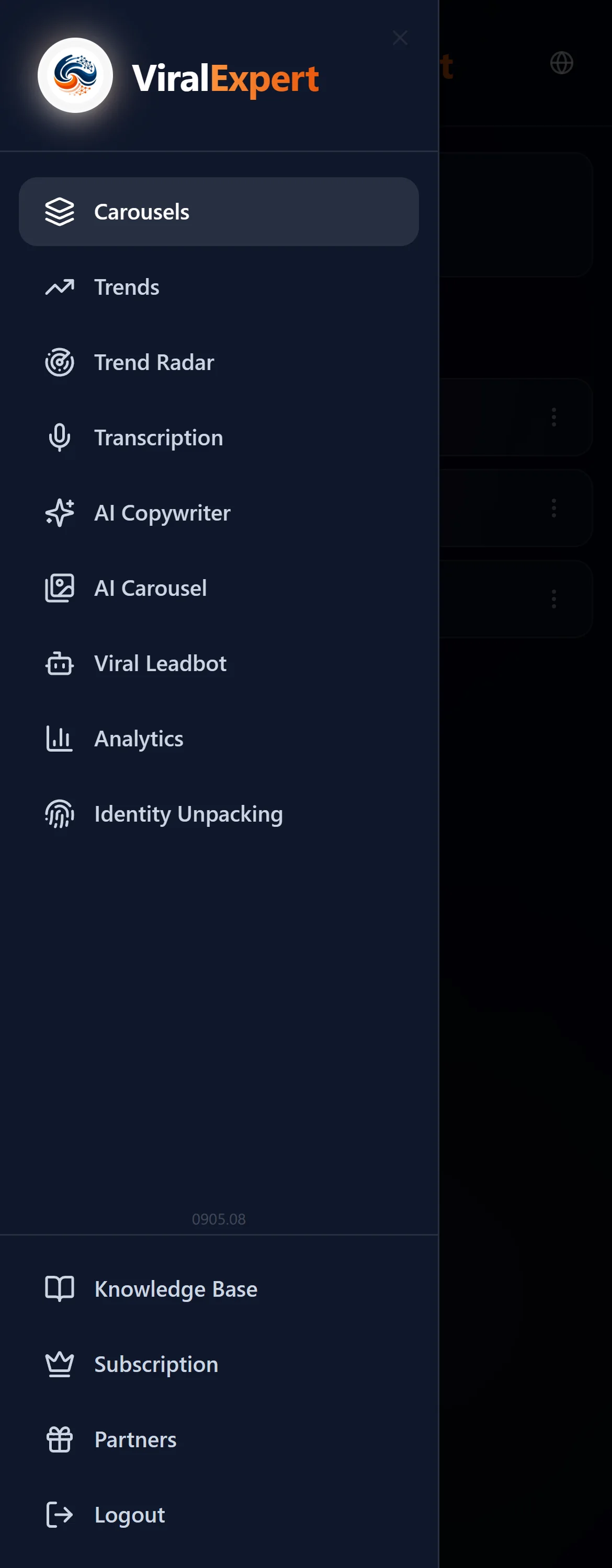
The sidebar: all the tools
On the left is the list of sections, top to bottom:
- Carousels — the slide editor and the list of your carousels (the main screen)
- Trends — topic subscriptions delivered to Telegram
- Trend Radar — competitors' breakout clips
- Transcription — video and audio to text
- AI Copywriter — headlines and posts
- AI Carousel — slides drawn by AI
- Viral Leadbot — lead magnets for a Telegram channel
- Analytics — a section in development: a lock icon and a “coming soon” hint
- Personality unpacking — a voice for the copywriter
- At the bottom: Knowledge Base, Subscription, Partners, Log out
Note
The active section is highlighted. A locked item doesn't open yet — clicking it shows the “Section in development” message.
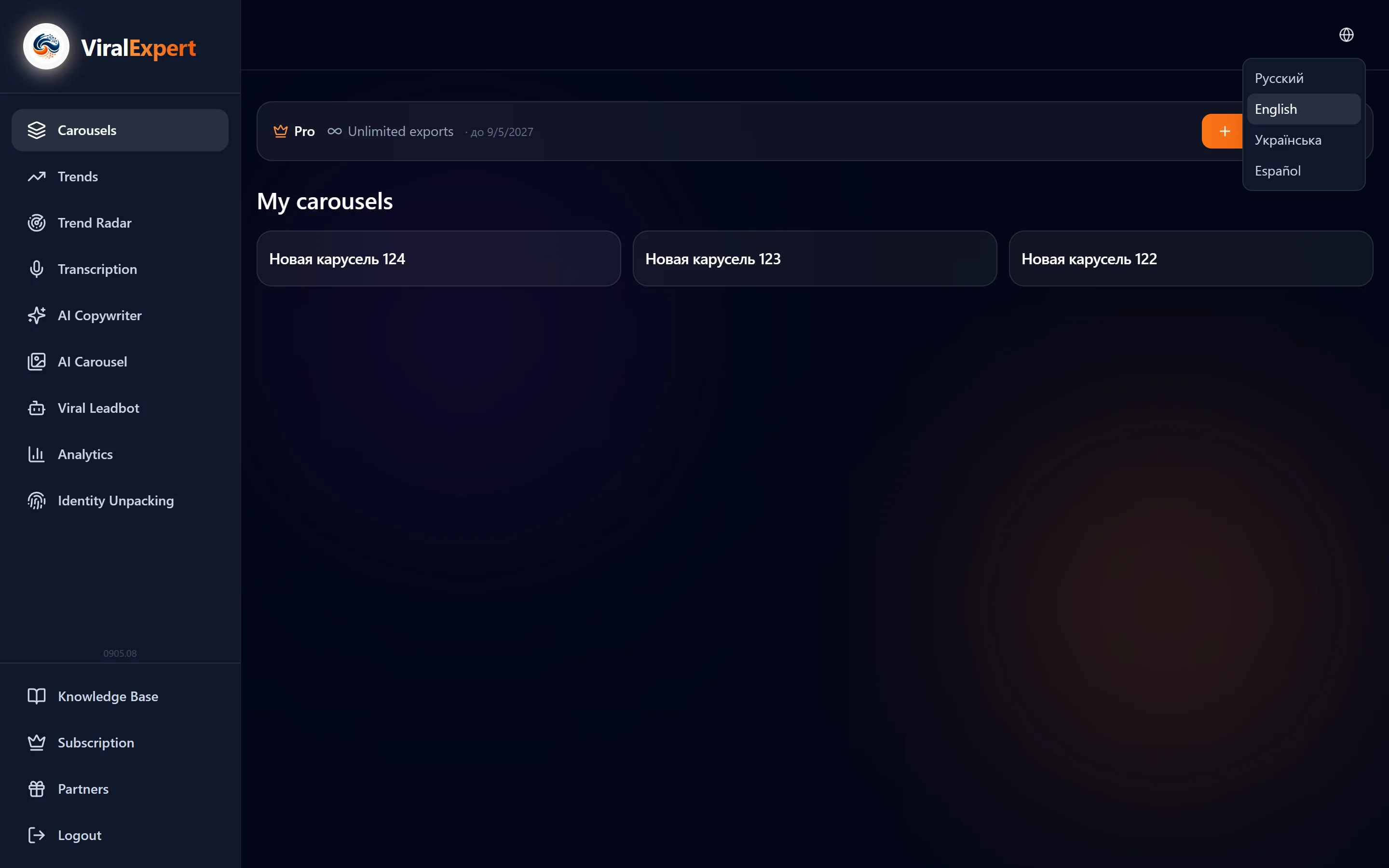
The header: language and quick actions
- The globe icon on the right — the interface language: Russian, English, Ukrainian, Spanish. The choice is saved in your profile and applied at the next login
- The interface language doesn't affect the generation language: the copywriter and AI Carousel have their own text language settings
- Administrators see an “Admin” button in the header
Tip
You can share a page link in the right language straight away: add ?lang=en, ?lang=ua or ?lang=es to the address.
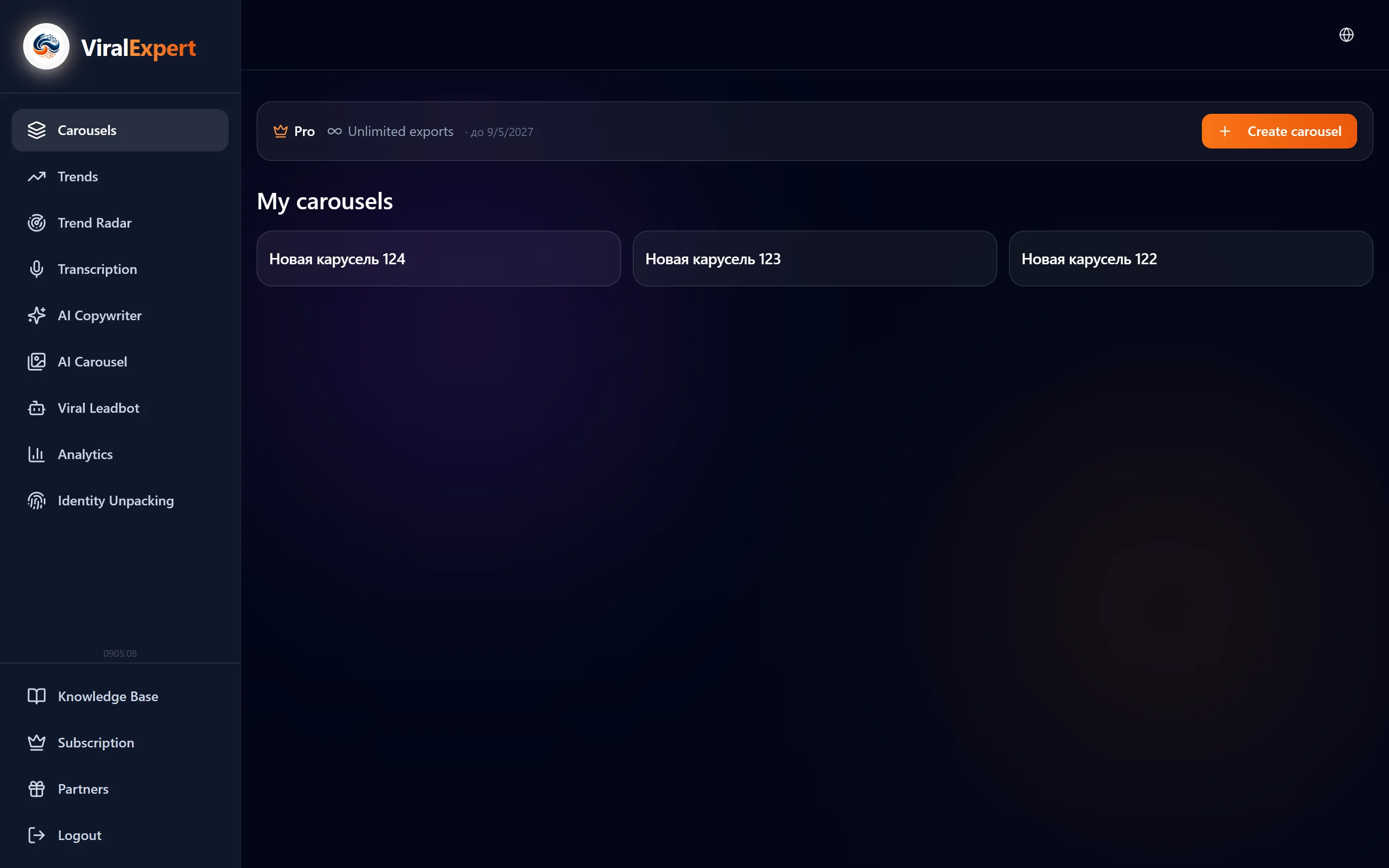
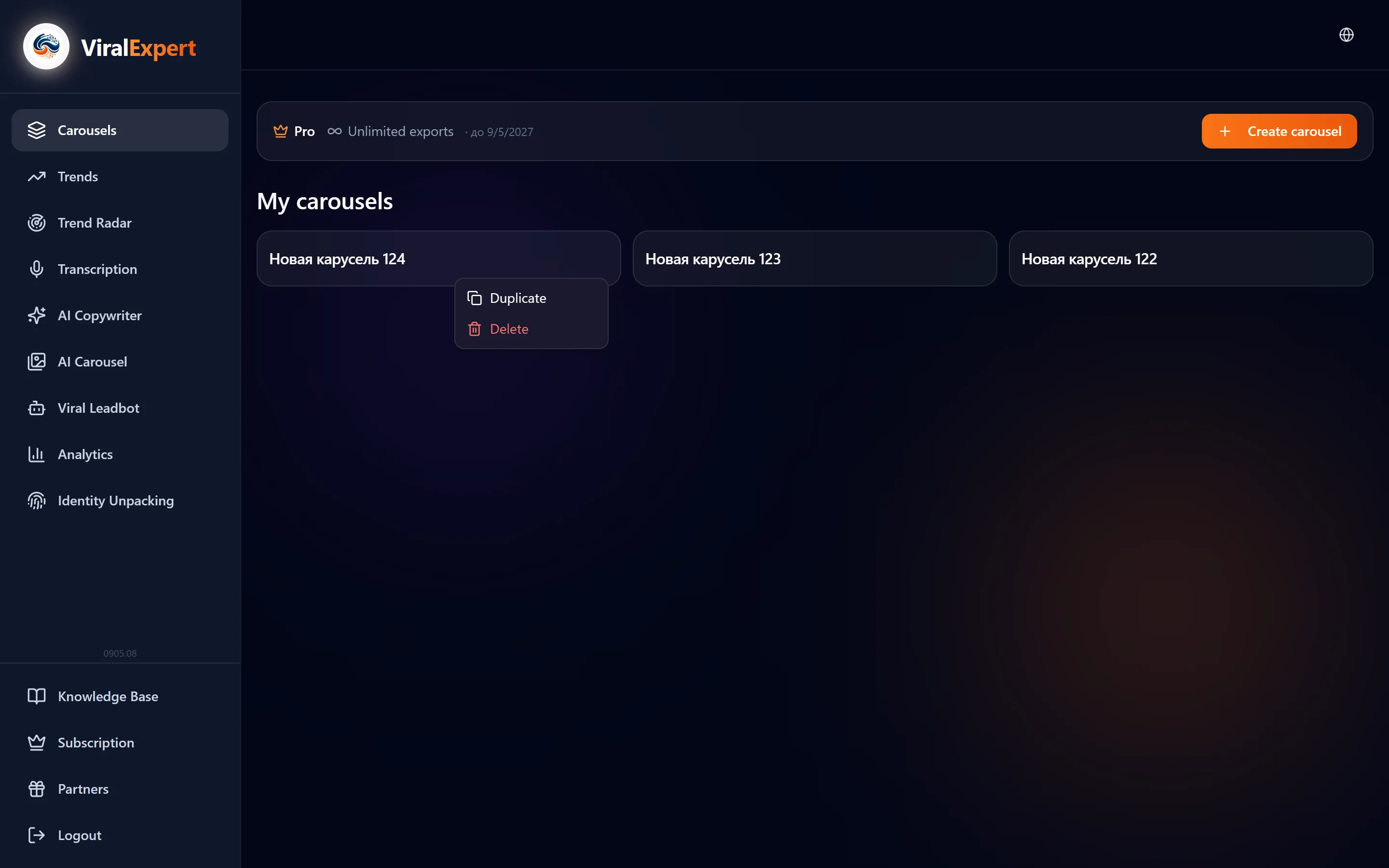
The “Carousels” main screen
- At the top — the plan badge (START / PRO), the exports counter “used of the limit” and the “Upgrade Pro” button on the free plan
- The orange “+ Create carousel” button opens the editor
- Below — “My carousels”: cards with a preview and the slide count. Each has open, “Create a copy” (a new carousel with the same settings and text) and delete
- An empty screen says “You have no carousels yet. Create your first one!”
Important
Deleting a carousel is irreversible. If you need a similar one — make a copy first.
On the phone
- The menu hides behind the ☰ button on the left of the header; the logo is in the center, the globe on the right
- All sections work on the phone; the carousel editor has its own mobile layout with tabs at the bottom
- The site installs as an app — no store, with an icon on the screen
Note
How to put the icon on your phone — in the “Install as an app” section.
Where to find the rest
- Subscription — the current plan, limits, payment history, token and slide packs
- Partners — the referral link, statistics and payouts
- Archive — all copywriter texts (a tab inside the copywriter and a separate section)
- Knowledge Base — this guide; opens from the dashboard and from the website
- Support — support@viralexpert.app and Telegram @viralexpert_support
FAQ
Ready to try?
Every tool is free to start. No card required.