Sign up and log in
Logging in with Google or e-mail, confirming your address, recovering a password, the first screens after login.
6 steps≈ 4 minDesktop · Mobile
A ViralExpert account takes a minute: click “Continue with Google” or sign up with an e-mail and password and confirm the address via the link in the letter. Here you'll also find what to do if the letter didn't arrive, how to reset a password and what you see right after logging in.
Step-by-step guideDesktop version
Open the login page
- On the website click “Log in” or “Start for free” — the login page opens
- Google login is at the top, the e-mail and password form below
- The switch at the bottom: “No account? Sign up” and back “Already have an account? Log in”
Note
The Start plan is free forever; no bank card is needed to sign up.
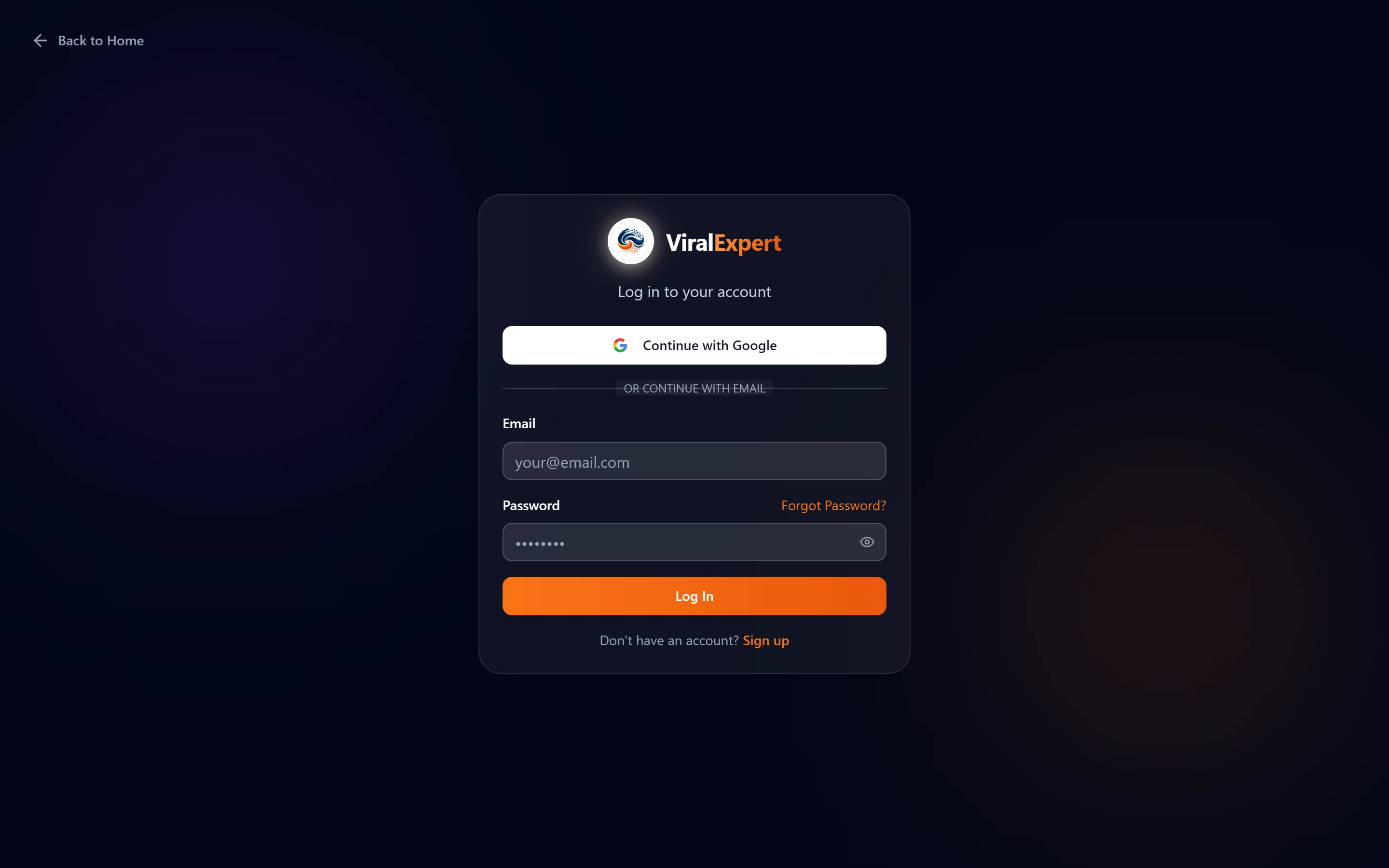
The fastest way: Google
- Click “Continue with Google” and pick an account
- No e-mail confirmation needed — you land in the dashboard right away
- Next time log in with the same button: no password is set for such an account
Important
If you signed up with Google, the password form will say “Invalid email or password” — use the Google button.
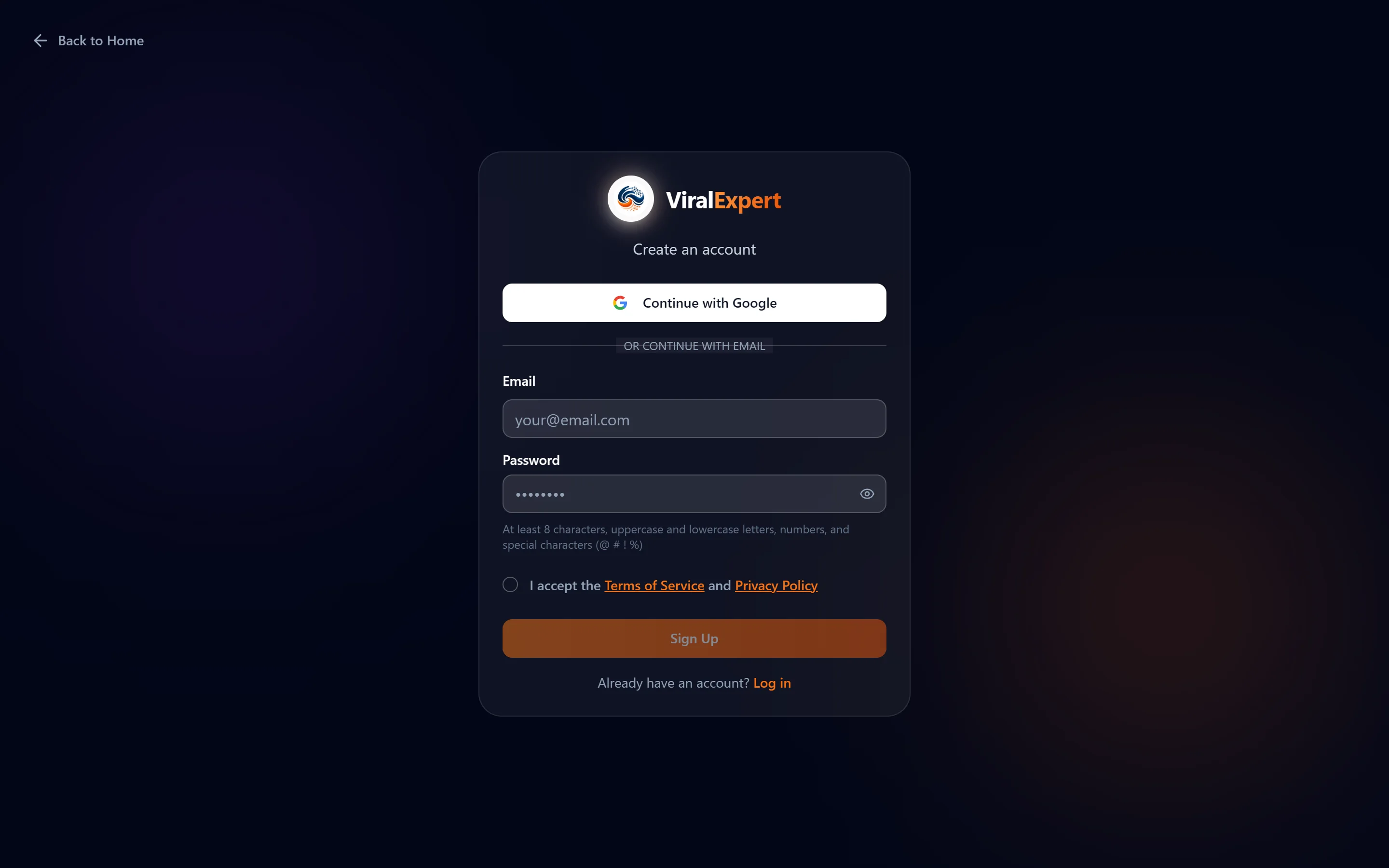
Signing up with e-mail
- Switch to “Sign up”, enter your e-mail and password
- Password: at least 8 characters, upper- and lowercase letters, digits and special characters (@ # ! %) — otherwise the “Password is too simple” hint appears
- Tick “I accept the Terms of Service and Privacy Policy” and click “Sign up”
- The “Check your inbox!” screen appears: click the link in the letter to activate the account, then log in
Tip
Can't see the letter? Check the “Spam” and “Promotions” folders. If you signed up via a partner link, you'll see a message about bonus exports after logging in.
Logging in and common errors
- Enter your e-mail and password, click “Log in”
- “Invalid email or password” — check the keyboard layout and spaces; for Google accounts use the Google button
- “A user with this email is already registered” — you're trying to sign up again: switch to login
- “Too many attempts” and “E-mail sending limit exceeded” — wait 3–5 minutes without pressing the button again: it's server protection, not a password error
- “Connection problem” — check your internet and try again
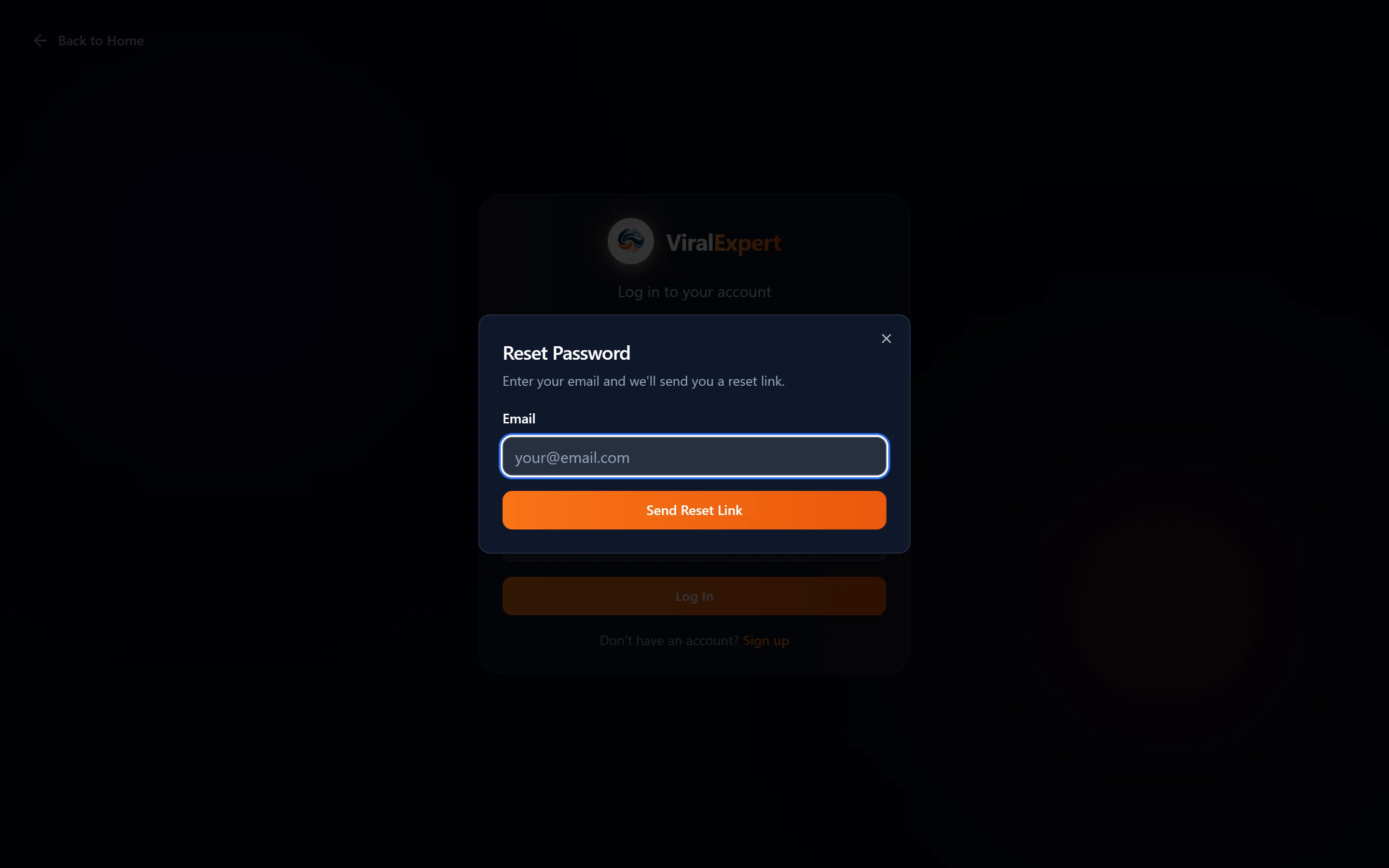
Forgot your password
- On the login page click “Forgot password?”, enter your e-mail and click “Send link”
- Open the letter and follow the link — the “Set a new password” page opens
- Enter the new password twice and click “Save new password”; the new password must differ from the old one
- If the link didn't work — “Invalid or expired link” — request a new one
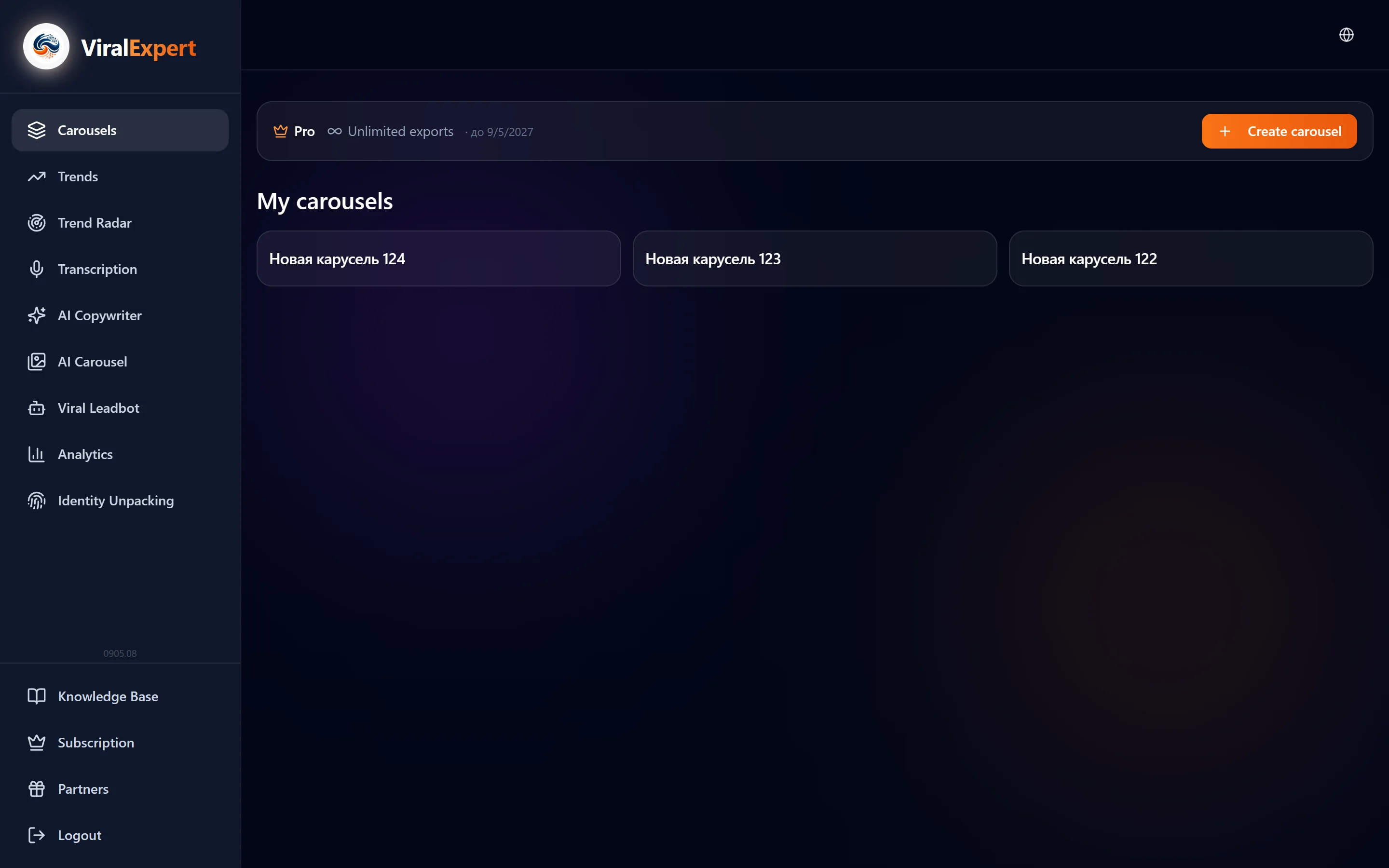
The first screens after login
- On the first login the “Terms consent” window may appear — tick the box and click “Accept and continue”
- You land on the dashboard's main screen — “Carousels”; the menu of all tools is on the left
- The interface language changes with the globe icon in the header and is remembered in your profile
- To log out — the “Log out” button at the bottom of the sidebar
Note
Next — the “Interface and navigation” section: where everything lives in the dashboard.
FAQ
Ready to try?
Every tool is free to start. No card required.